

Why Skills Exist
Your intern is capable out of the box, but skills let you specialize it without bloating every conversation. Install only what you need, and your intern automatically reaches for the right skill when a request calls for it. Examples of what a skill can do:- A LinkedIn skill that drafts and schedules posts in your brand voice
- A Research skill that pulls from multiple sources and formats a report
- A Customer Support skill that answers common questions with your replies
- A Code Review skill that checks PRs and leaves structured feedback
Installing a Skill
Open My Intern → Skills → Public Skills to browse the Skill Hub. You can search, filter by category, open a skill detail page, and install a skill from there. You can also ask SuperIntern to find or install a skill:Using a Skill
Installed skills appear in chat as selectable skill chips. SuperIntern can route requests to the right installed skill, and you can also invoke one directly:Customizing a Skill
Open My Intern → Skills → Installed Skills to search your installed skills, open connection settings, or uninstall a skill. You can also add custom behavior through chat:Managing Skills
Everything you’ve installed lives in My Intern → Skills → Installed Skills, where you can search, configure, or remove each skill.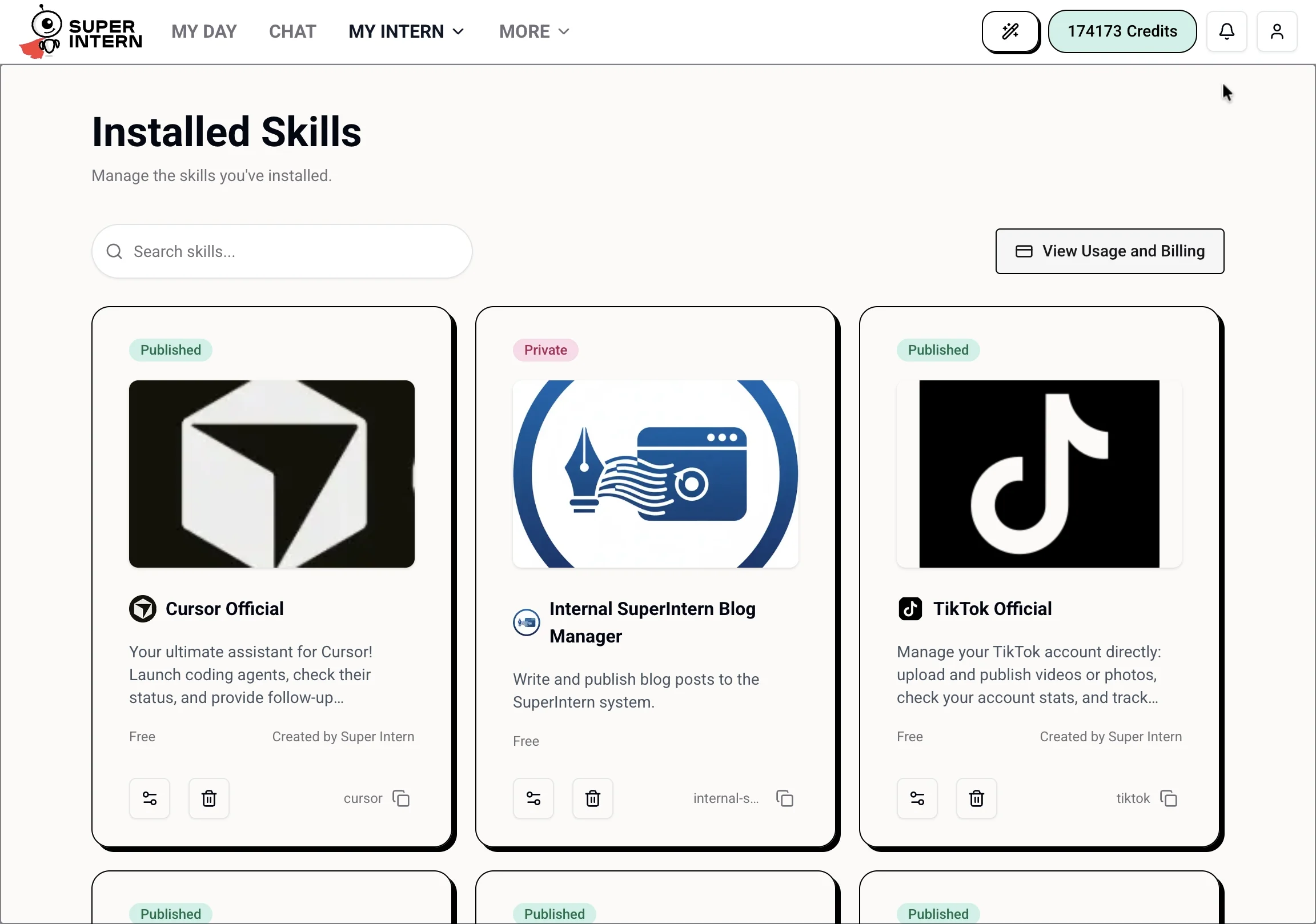
You can have up to 20 skills installed at once.
Skills in the Web App
- Public Skills — browse the Skill Hub, search by keyword, filter by category, and install skills.
- Installed Skills — manage skills already connected to your SuperIntern.
- Creator Center — view skills you created, edit, duplicate, delete, and review earnings.
- Create New Skill — build a new skill in the no-code editor.