

The Integrations Tab
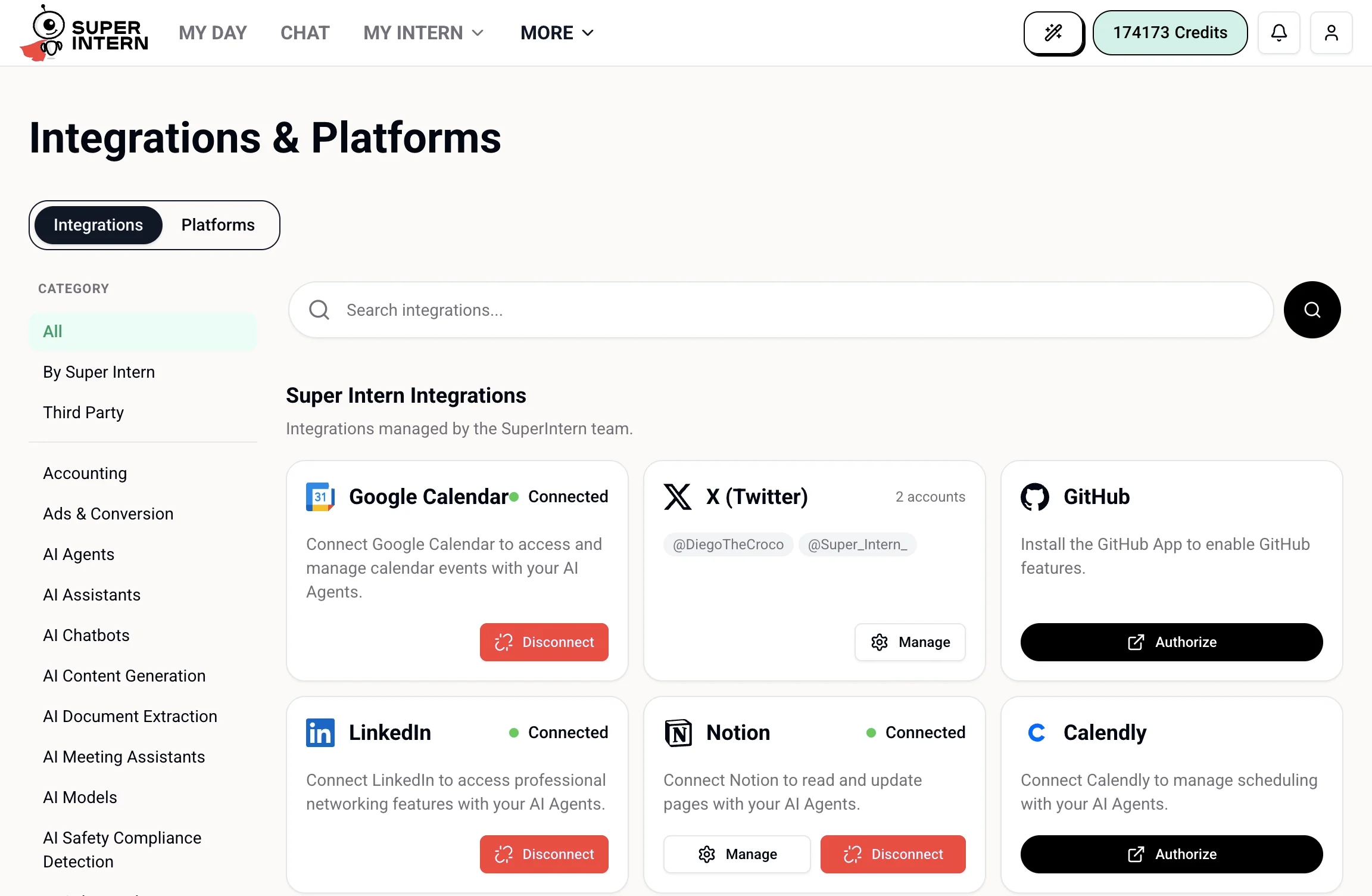
- Category sidebar — filter by All, By SuperIntern (native integrations), or Third Party, or jump to a specific category like Accounting, AI Agents, or Analytics.
- Search — find any integration in the catalog by name.
- Integration cards — each card shows the service, a short description of what connecting enables, and its connection status.
Connecting and Managing
The buttons on each card depend on its state:
Integrations that support multiple accounts — such as X (Twitter) and TikTok — show the connected accounts on the card, and Manage lets you add or switch between them.
SuperIntern Integrations
The By SuperIntern section lists integrations built and maintained by the SuperIntern team. They connect directly to each service through its official API, are tested and updated automatically, and cover the tools your intern uses most:- Calendar & Email — Google Calendar, Outlook, Calendly
- Social Media — X (Twitter), LinkedIn, TikTok
- Productivity & Developer Tools — Notion, GitHub, Cursor
Third-Party Integrations
The Third Party section is a searchable catalog of 250+ external services, bridging SuperIntern to apps that aren’t natively supported — CRMs, databases, accounting tools, cloud storage, and more. Browse it by category from the sidebar (Accounting, AI Agents, Analytics, and many others) or use search. Connecting works the same way: click Authorize, complete the service’s OAuth flow, and the integration’s tools become available to your intern instantly. If a third-party connection expires, re-authorize it from the same card. See Third-Party Integrations for the full guide.The Platforms Tab
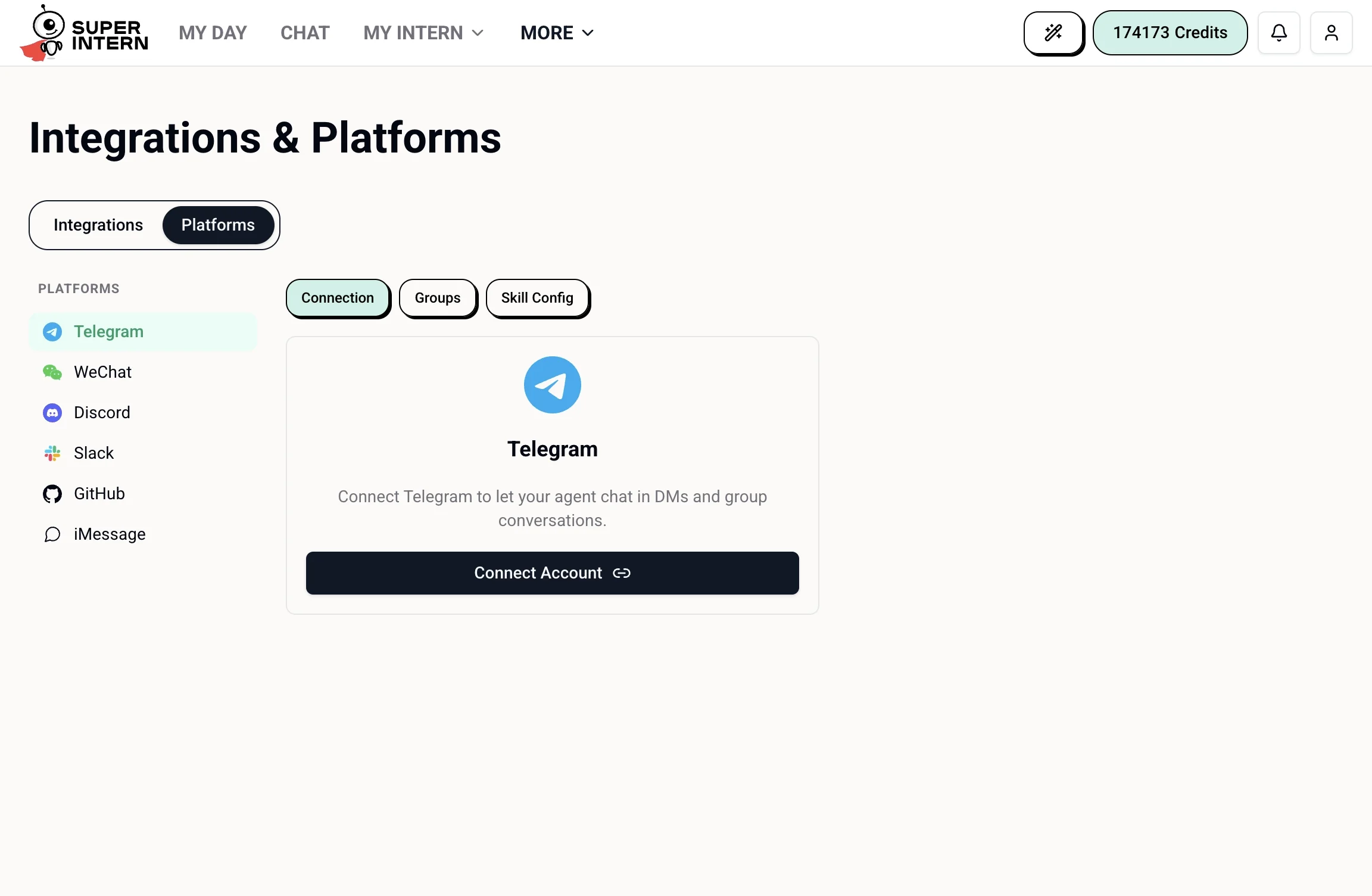
Everything you connect is governed by SuperIntern’s privacy and security rules — only the tokens needed to act are stored, and you can revoke access from this page at any time.