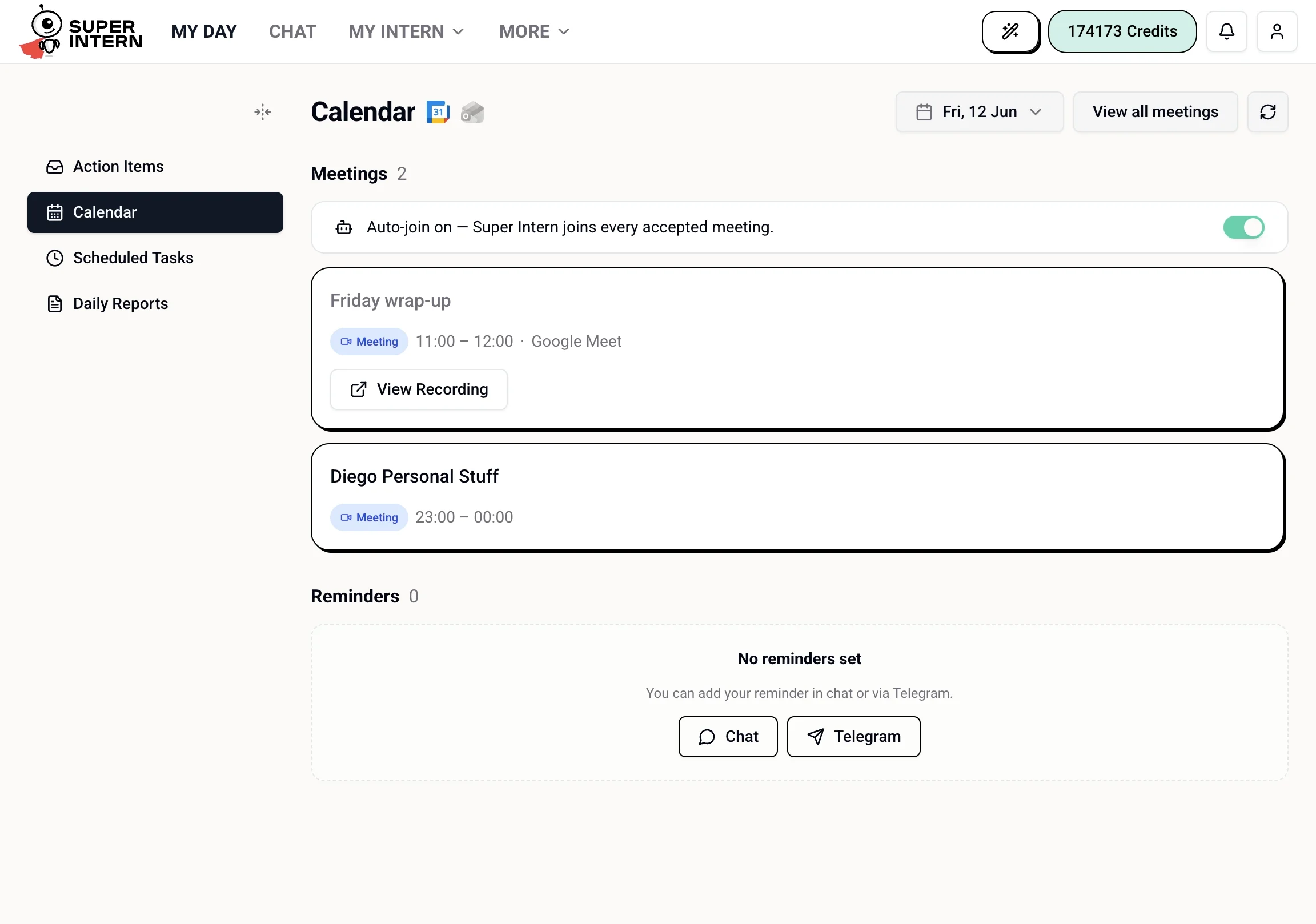
Once your calendar is connected, your upcoming events appear in the Calendar tab of My Day. Your intern also preps you before calls, can attend meetings as a bot, and delivers summaries with action items afterward.
Connecting Your Calendar
Your intern needs calendar access to show your schedule and join meetings. Connect it during onboarding or from More → Integrations in the top navigation.
See Why Connect Your Calendar? for everything calendar access unlocks.
The Calendar Tab
The Calendar tab shows:
- Meetings — each event’s title, time, and platform, with a date picker to view other days
- Auto-join toggle — have your intern’s bot join every accepted meeting automatically
- Join button — appears on any event with a supported video link
- Reminders — reminders you’ve set in chat or via Telegram
- View all meetings — jumps to the full Meetings page
Your intern refreshes this view automatically. If a meeting is rescheduled or cancelled, the My Day page updates without you doing anything.
Ask about your schedule in chat any time:
What's on my calendar today?
When's my next free hour this afternoon?
Do I have any conflicts this week?
What meetings do I have tomorrow?
Pre-Meeting Briefings
Before a meeting starts, your intern can prepare a briefing — a short summary of who’s attending, relevant context from past conversations or emails, and open items that might come up.
Brief me before my 3pm call with the design team.
Who's on the meeting at 2pm and what's the agenda?
What did we discuss last time with the Acme team?
Briefings pull from your email, previous meeting notes, and anything your intern knows about the attendees through your CRM.
Sending the Bot to a Meeting
For any event with a supported video link, click Join in the Calendar tab to send your intern’s bot into the call. You attend the meeting; your intern handles the notes:
- Share a meeting link with your intern, or send the bot from the Calendar tab.
- The bot joins as a participant under a name you choose.
- After the call, it processes the recording.
- You receive a summary with key decisions and action items, surfaced in the Action Items tab.
You can also send the bot from chat:
Join my 3pm Google Meet and take notes.
Join this meeting and take notes: https://meet.google.com/abc-defg-hij
What the Summary Includes
- Title and duration
- Key discussion points, organized by topic
- Decisions made
- Action items, with owner and deadline when mentioned
- Full transcript (optional)
Naming the Bot
Set the meeting bot name to "SuperIntern Notes".
Other participants see the bot join under this name. Let your team know in advance.
| Platform | Status |
|---|
| Google Meet | Supported |
| Zoom | Supported |
| Microsoft Teams | Supported |
| Webex | Supported |
Retrieving Past Notes
You can view all your past meetings and summaries from the Calendar tab, or ask in chat:
Show me the notes from yesterday's meeting.
What action items came out of this week's team sync?
Find my meeting with the design team from last Tuesday.
Send the bot a few minutes early so it’s ready when the call begins. You can also ask it to share the summary afterward: “Send the meeting notes to the team Slack channel.”
Meetings Without the Bot
Your intern doesn’t need to attend a meeting to be useful. You can brief it before and debrief it after:
I just got out of a meeting. Here's what happened: [paste notes]. What follow-ups should I send?
Draft a follow-up email to the Acme team based on what we discussed — focus on the pricing proposal.
Asking About Specific Events
What time is my next meeting?
Who's coming to the Friday all-hands?
Can you check if I'm free at 4pm on Thursday?
Block two hours tomorrow morning for deep work.
Your intern can read your calendar, describe events, and suggest free time — but only writes to your calendar if you explicitly ask it to.