

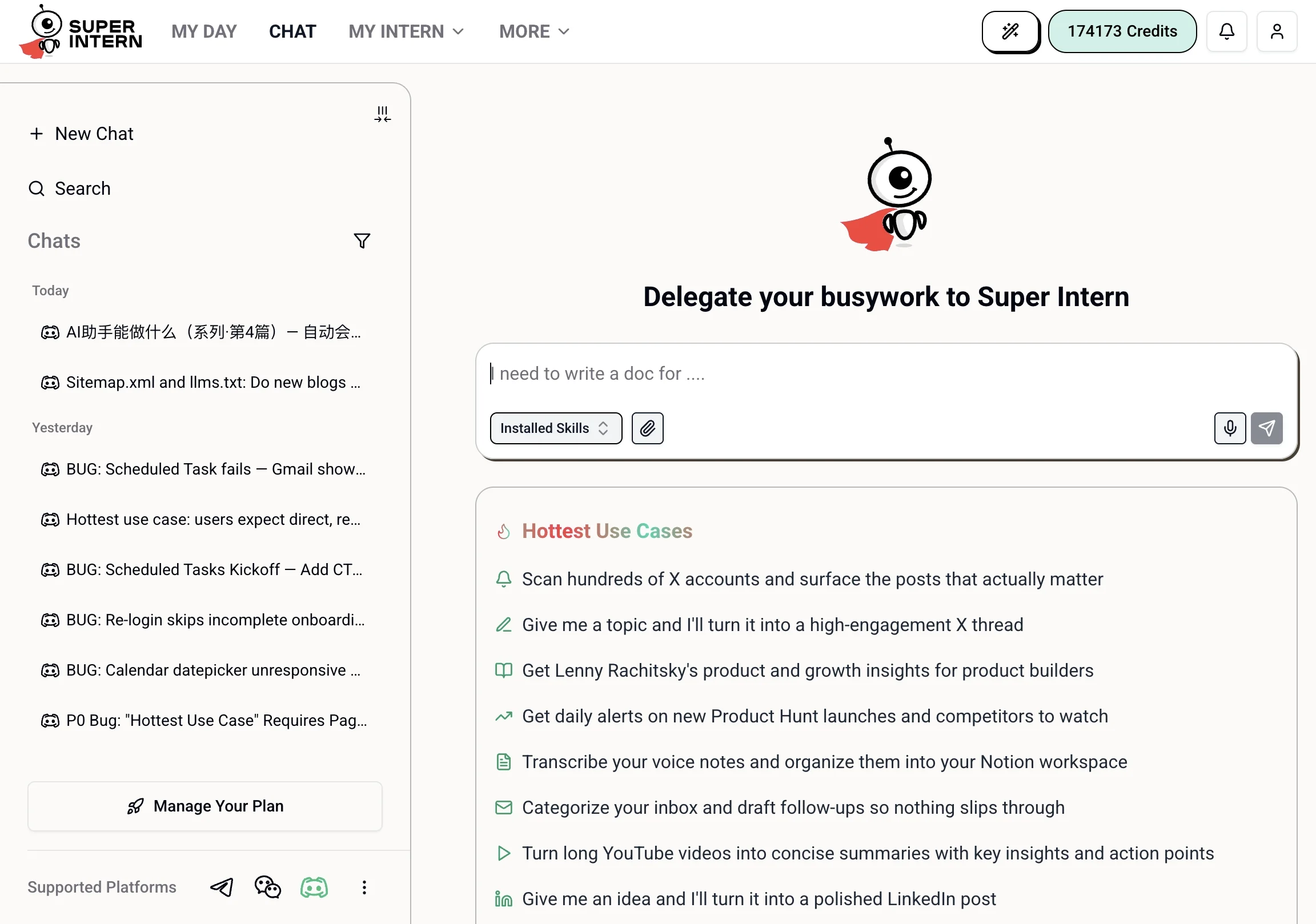
Starting a Conversation
Click New Chat in the sidebar or press ⌘⇧O (Mac) / Ctrl+Shift+O (Windows) to open a fresh session. Type naturally:Skills
Skills give your intern specialized abilities — a LinkedIn skill for social drafting, a CRM skill for contact management, a research skill for deep searches. On a new chat, pick a skill from the Installed Skills selector in the chat input; inside a conversation, your installed skills appear as chips in the chat header.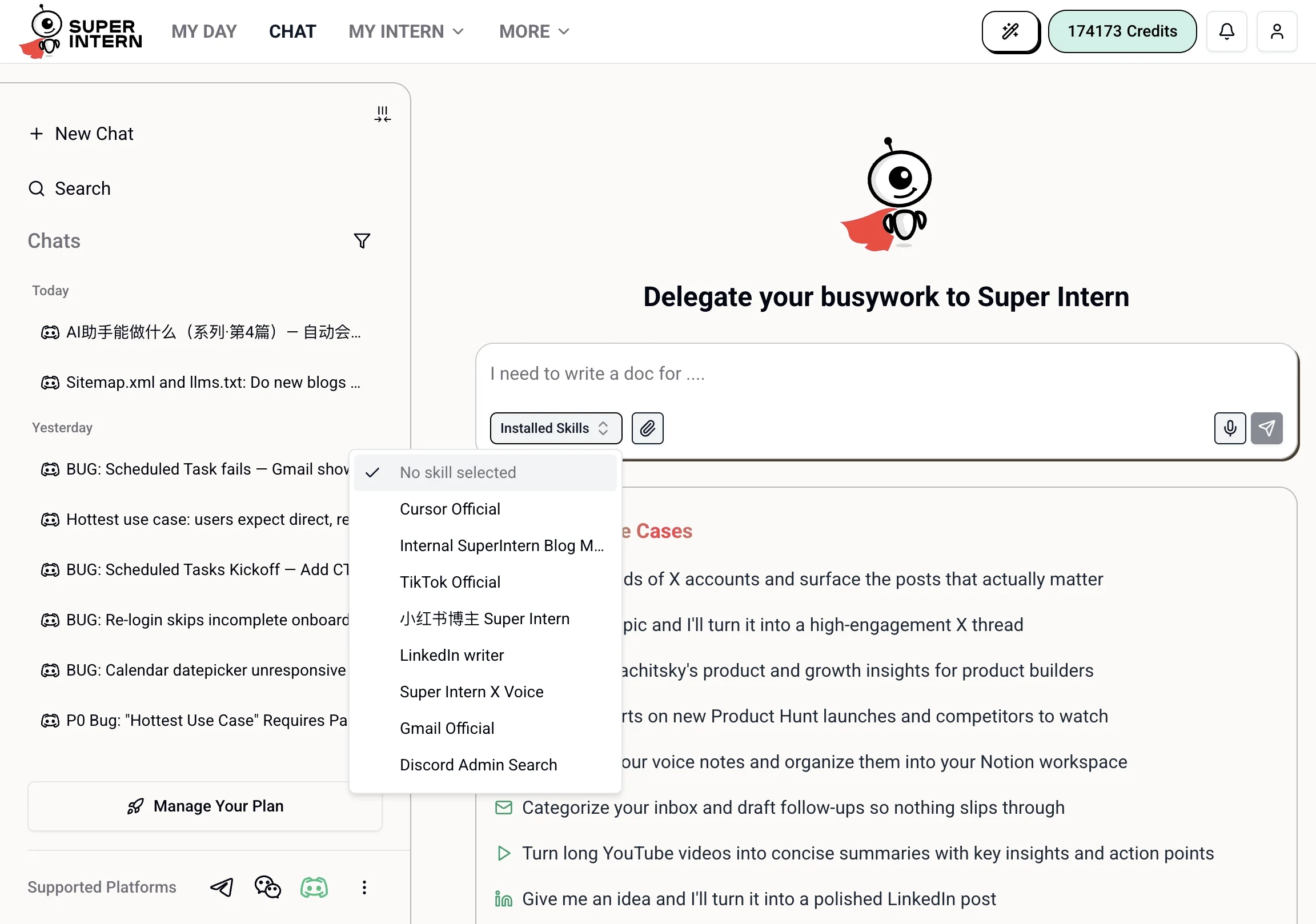
Selecting a skill
Click a skill chip to activate it. The selected skill turns green with a checkmark. Your intern uses that skill’s toolset and context for the conversation. Click the same chip again to deactivate it and return to the general superintern mode.Switching skills mid-conversation
You can switch skills at any point in a conversation. Click a different chip and your next message runs against the new skill. This is useful when you want to start a task in one skill’s context and then hand off to another.More skills
If you have more than five skills installed, a +N more chip appears. Click it to expand a popover with the full list — all skills are searchable and selectable from there.Skill warnings
A skill chip shows a warning triangle if something is missing — an integration that isn’t connected, a browser extension not installed, or a permission not granted. Click the triangle to see what’s needed and connect it on the spot.Installing new skills
Click Install Skills (visible when no skills are installed) or go to My Intern → Skills → Public Skills to browse and install skills. See What Is a Skill? for the full overview.The Chat Input
Sending messages
Type in the input field and press Enter or click the send button. Your intern responds in real time with a streaming reply.Uploading files
Click the attachment icon to upload documents, images, PDFs, or other files. Your intern can summarize, extract information from, or work with the file:Stopping generation
Click the stop button while your intern is responding to cancel the current generation. Useful if a response is going in the wrong direction and you want to redirect.Conversation History
Your past conversations appear in the sidebar, grouped by recency:- Today — sessions from today
- Yesterday — sessions from yesterday
- Last week — sessions from the past 7 days
- Earlier — everything older
Searching history
Press ⌘K (Mac) / Ctrl+K (Windows), or click the Search icon in the sidebar. Type to search across all your past sessions. Results update as you type (with a short debounce delay) — press Enter to search immediately. Press Escape or click X to close search and return to the full history view.Filtering by skill
Click the filter icon in the sidebar to show only sessions associated with a specific skill. A dot appears on the filter icon when a filter is active. Click Clear in the popover to remove the filter.Renaming a session
Hover over a session in the sidebar and click the more options menu, or use the edit icon in the chat header next to the session name. Type the new name and press Enter to confirm.Deleting a session
Open the ⋮ menu in the chat header and click Delete. Deleted sessions are removed permanently.Sharing a Conversation
You can share any conversation as a read-only link — useful for sending a transcript to a colleague or saving a snapshot of a long session. Open the ⋮ menu in the chat header:- Create Share Link — generates a shareable URL and copies it to your clipboard. Anyone with the link can view the conversation.
- Copy Share Link — copies an existing share link again.
- Revoke Share Link — disables the link so it no longer works. Useful if you shared a link and need to rescind access.
Message Feedback
Each assistant message shows like and dislike buttons. Use them to signal whether the response was helpful — your intern uses this feedback to improve over time. For more specific feedback, click the dislike button to open a short form where you can describe what went wrong.Example Questions
When a skill is active, the chat area may show example questions for that skill — common things to ask that demonstrate what the skill can do. Click any example to pre-fill the input and send it with one click.Session Options Menu
The ⋮ button in the top-right of the chat header contains additional actions:Read-Only Mode
When viewing a shared conversation, the chat is in read-only mode — you can see the full transcript but cannot send new messages. A banner at the bottom indicates this state.Connecting Messaging Platforms
At the bottom of the sidebar, your connected messaging channels are shown as icons. A green icon means connected; grey means not connected. Supported platforms:
Click any platform icon to connect it. Once connected, you can chat with your intern directly from that app — your sessions, skills, and memory all stay in sync. See the per-platform guides for setup details:
Telegram
Private chat and group bots with ambient mode and topic support.
Discord
Server channels, DMs, and thread-aware responses.
Connect via QR code — full task and reminder support.
Keyboard Shortcuts
Tips
- The more context you give, the better the result. Instead of “send email,” say “send a brief, professional follow-up to Sarah about the contract we discussed.”
- Use skills for specialized tasks. General questions work fine without a skill, but complex workflows — social management, CRM lookups, browser automation — are significantly more powerful when the right skill is active.
- Start on the web, then move to mobile. The web app is the best place to set up integrations, configure skills, and review settings before you start using your intern on Telegram or Discord.