The Time Tracker is currently in Beta. Behavior and the interface may change.
What the Time Tracker Does
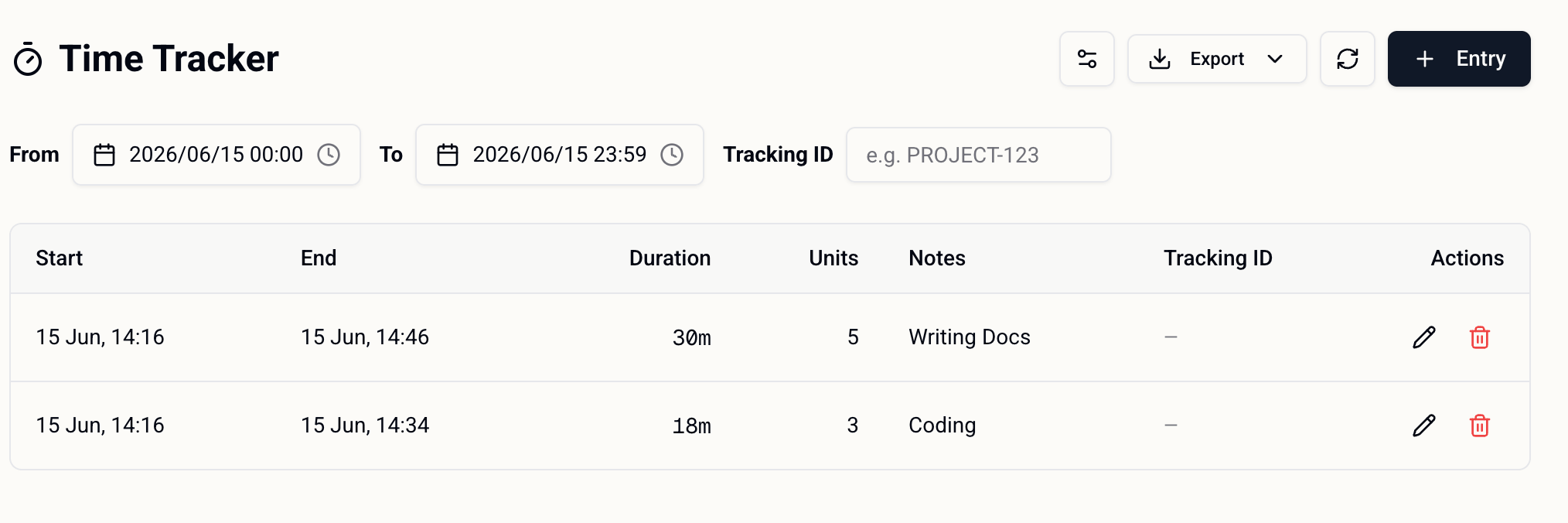
The Time Tracker turns your home screen into a lightweight time log. Once enabled, you can record time against your work in units, and SuperIntern keeps the totals so you don’t have to track them by hand. Because one unit is configurable, the tracker adapts to how you bill or report — whether that’s 6-minute increments, 15-minute blocks, or full hours.Getting Started
1
Contact us to enroll in the Beta
The Time Tracker is invite-only during Beta. Contact us to enroll your agent — you’ll need your agent ID ready so we can turn the feature on for you.
2
Install the Time Tracker skill
Install the Time Tracker skill. You can either open that link and install it directly, or just ask SuperIntern to install it for you:
3
Set how many minutes make one unit (optional)
After installing the skill, choose how many minutes count as one unit. You can set this by talking to SuperIntern, or adjust it in the UI. If you skip this step, the default is used.
Configuration
You can change how many minutes make up one unit at any time. Ask SuperIntern to update it, or change the unit setting directly in the Time Tracker UI on your home screen.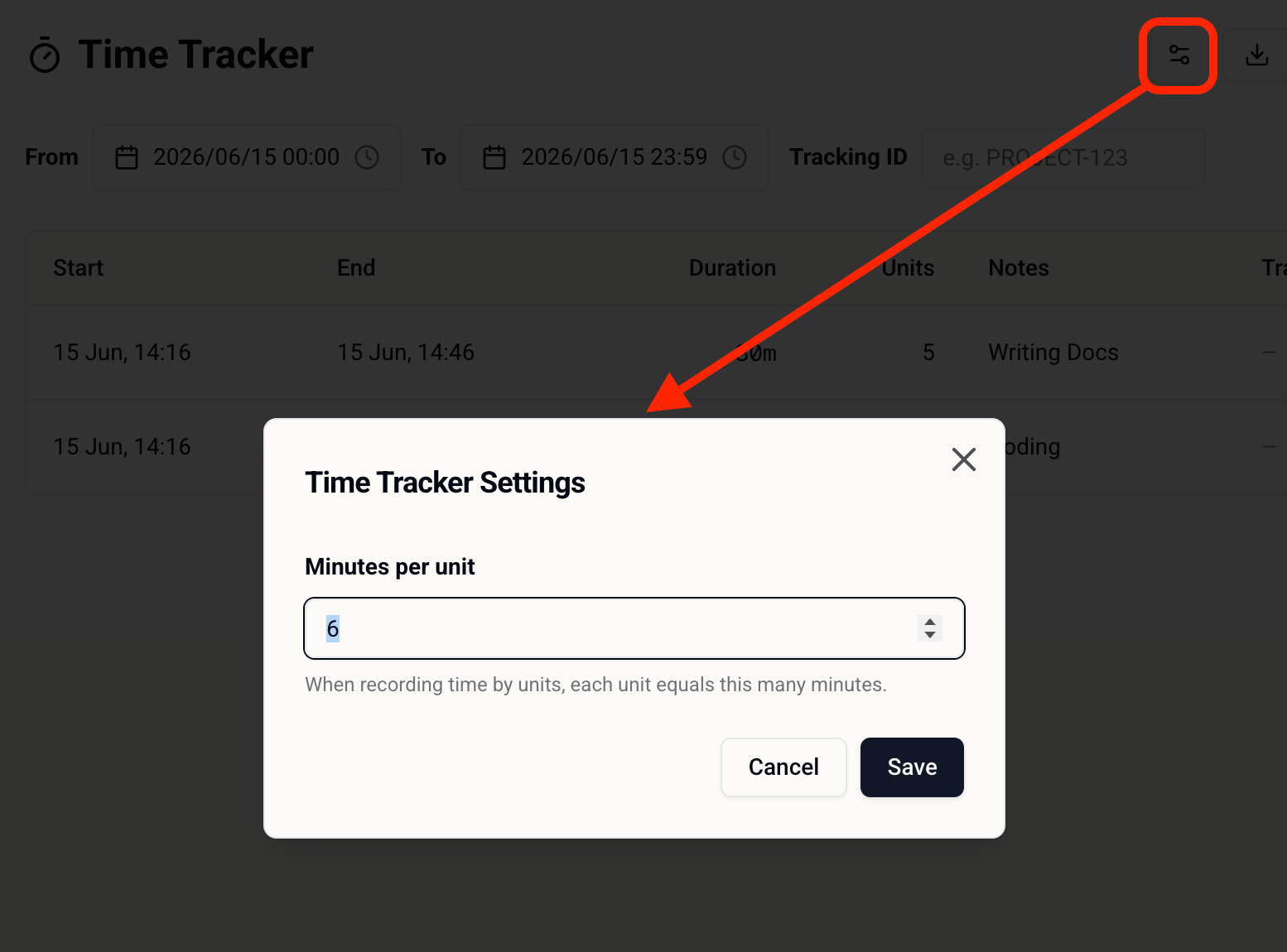
The Time Tracker is closely tied to your timezone setting, since entries are recorded against your local day. Your timezone is usually auto-detected from your browser, but you can review and manually adjust it anytime in Settings → Info. If your tracked times look off, check that your timezone is correct.
Export to CSV / Sheet
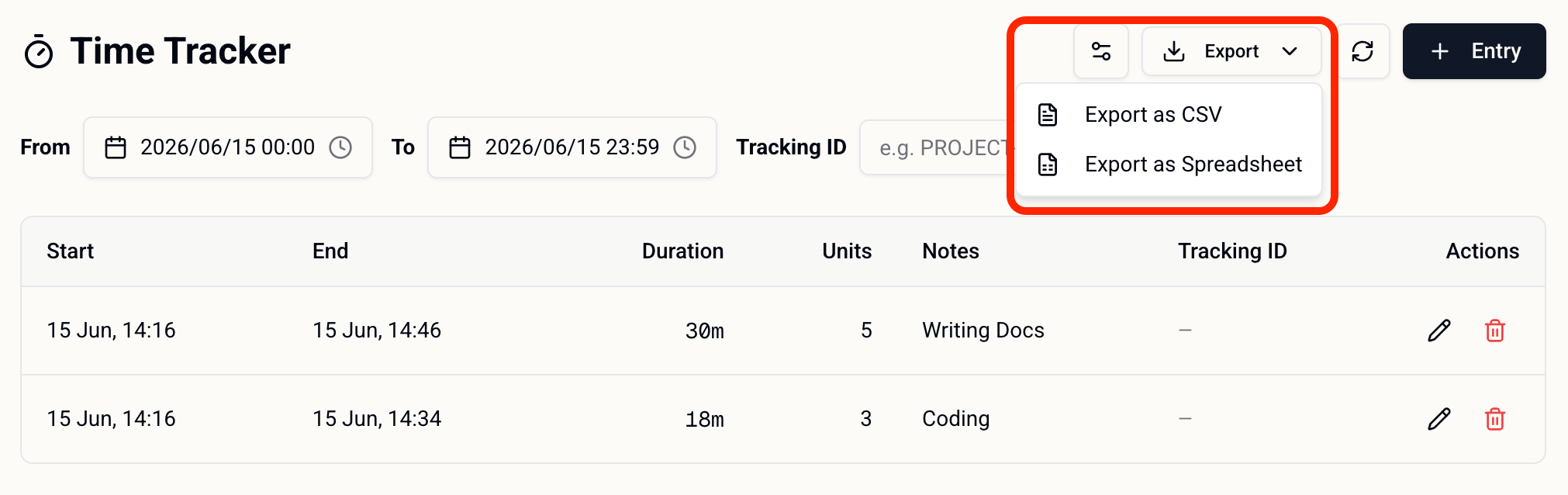
You can export your tracked time for billing, reporting, or sharing. Ask SuperIntern to export your entries, or use the export option in the Time Tracker UI on your home screen.