

Open Drafting Preferences
Go to My Day → Emails, then select Drafting preferences at the top of the email view.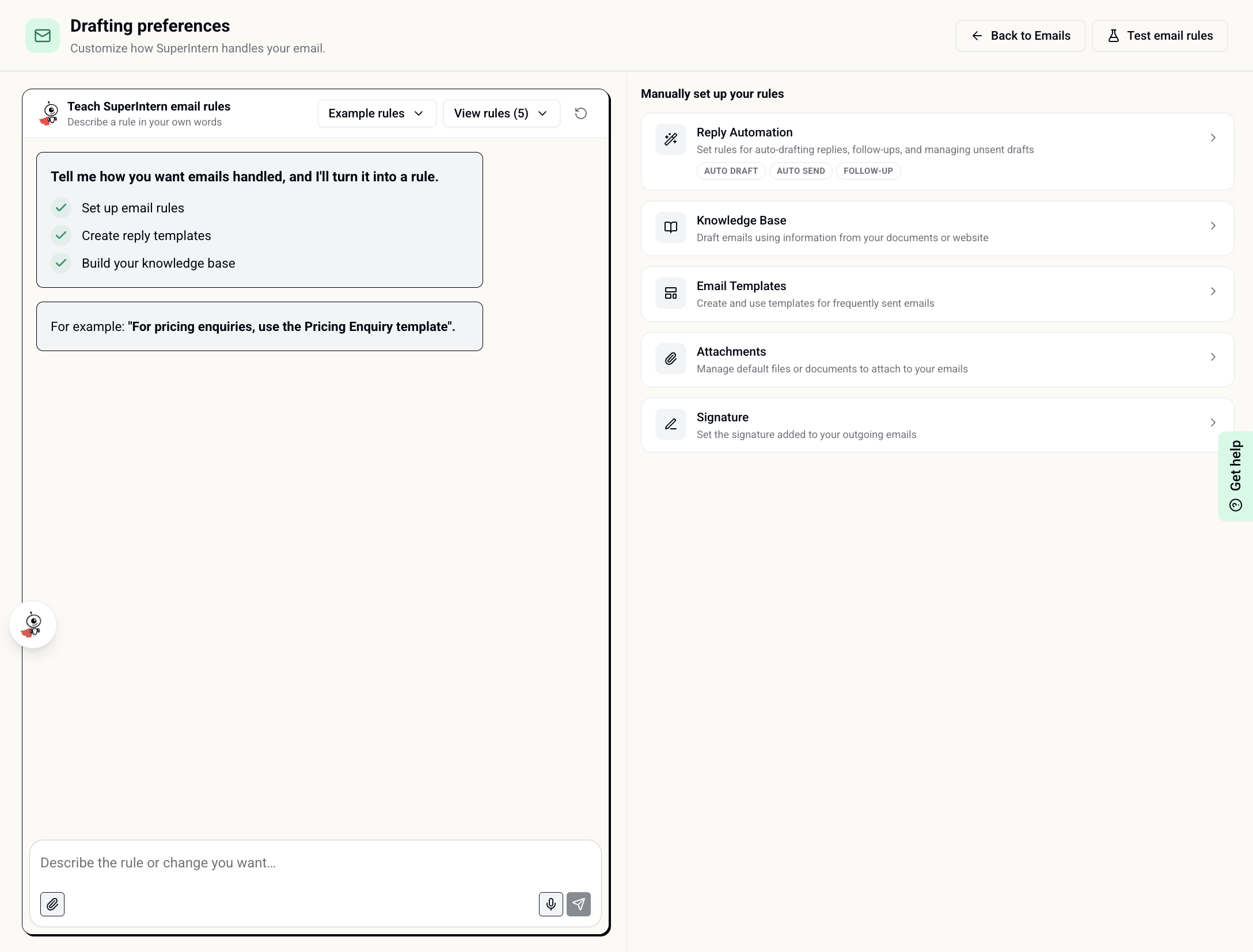
- Tell SuperIntern what you want in the setup chat. Describe the behavior in plain language, and SuperIntern can help create rules, templates, and other email resources.
- Set it up manually with the Reply Automation, Knowledge Base, Email Templates, Attachments, and Signature panels.
How email rules work
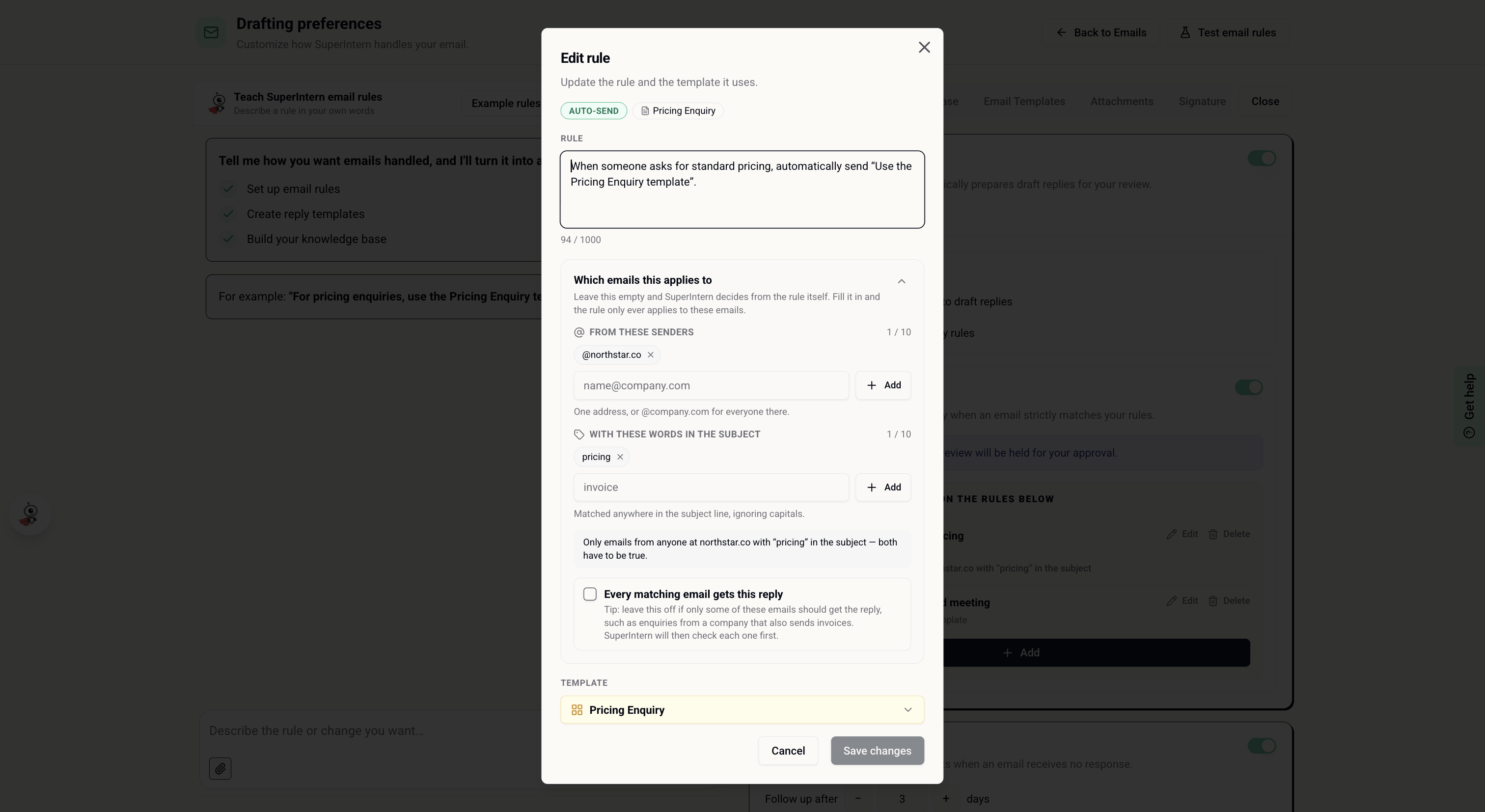
Email rules are standing instructions for how SuperIntern should draft or send replies. A rule can provide general guidance, or it can tell SuperIntern when to use the Knowledge Base, a template, or an attachment. For example:Limit a rule to matching email
A rule can apply generally or only when an incoming email matches:- From these senders — enter a complete email address or a domain such as
@company.com - With these words in the subject — matching ignores capitalization
Reply Automation
Reply Automation decides whether incoming email needs a reply and can prepare that reply for your review.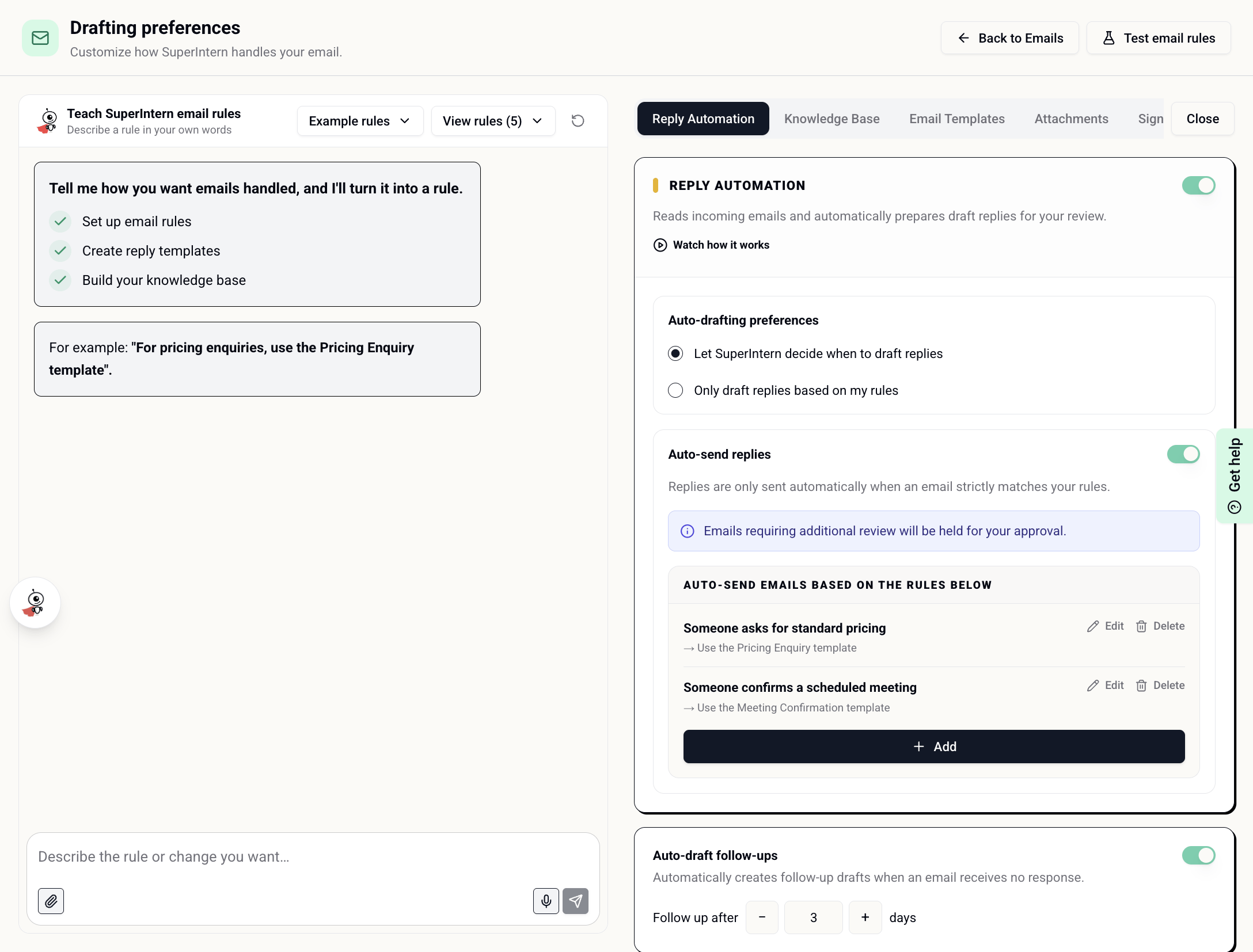
- Let SuperIntern decide when to draft replies — SuperIntern uses the message, your rules, and available email context to decide whether a reply is useful.
- Only draft replies based on my rules — SuperIntern drafts only when one of your auto-draft rules applies.
Auto-send replies
Auto-send lets a reply leave your mailbox without waiting for manual approval, but only when an email strictly matches an auto-send rule you created. For each auto-send rule, describe the situation and the response SuperIntern should send. You can restrict the rule to specific senders or words in the subject. When Every matching email gets this reply is enabled, those sender and subject conditions become the complete trigger; otherwise, SuperIntern checks each matching email before sending.Auto-draft follow-ups
Enable Auto-draft follow-ups to prepare a follow-up when an email has not received a response. Choose how many days SuperIntern should wait, from 1 to 30 days.Auto-delete unsent drafts
Enable Auto-delete unsent drafts to remove old drafts after a retention period you choose. A draft is also removed when you reply to the same conversation yourself. This option appears when Reply Automation or automatic follow-up drafting is enabled. The retention period can be set from 1 to 365 days.Knowledge Base
Use the Knowledge Base to ground email drafts in your own business information, such as pricing, policies, product details, or frequently used answers.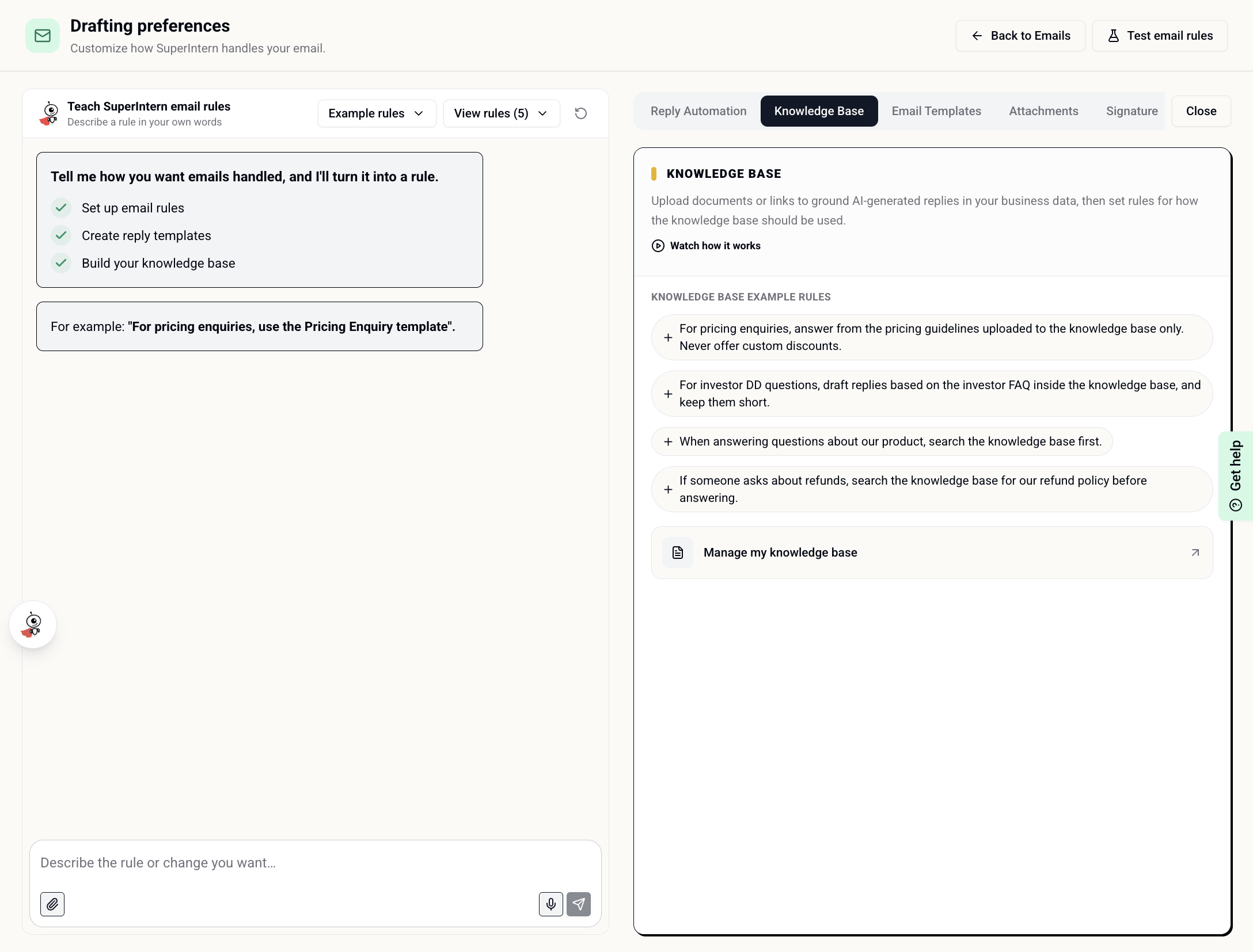
Email Templates
Templates provide approved wording and structure for email you send repeatedly.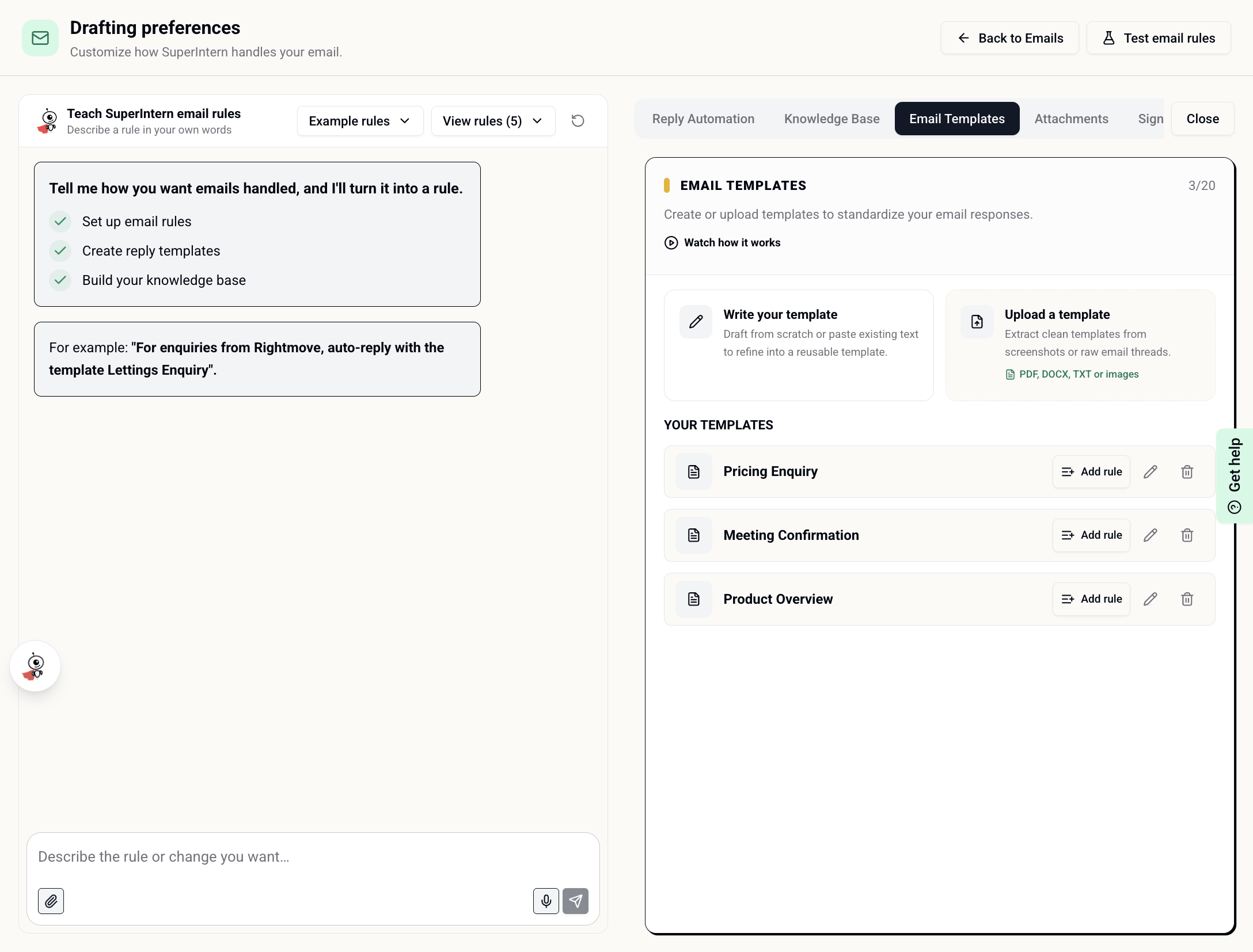
- Write a template from scratch
- Paste existing text and turn it into a reusable template
- Upload a PDF, DOCX, TXT, MD, or image file and review the templates SuperIntern extracts
- Add a subject for new emails
- Add reusable fields such as
{{first_name}},{{date}}, or{{property_address}} - Add attachments or inline images
- Create a rule that tells SuperIntern when to use the template
- Edit or delete saved templates
A template subject is used for new emails. Replies keep the existing thread subject. Templates containing attachments or inline images remain available from chat but are not selected for automatic reply drafts.
Attachments
The Attachments library stores files you send often, such as a brochure, price list, standard terms, or application form. Upload a file once, then reuse it in drafts or attach it automatically through a rule.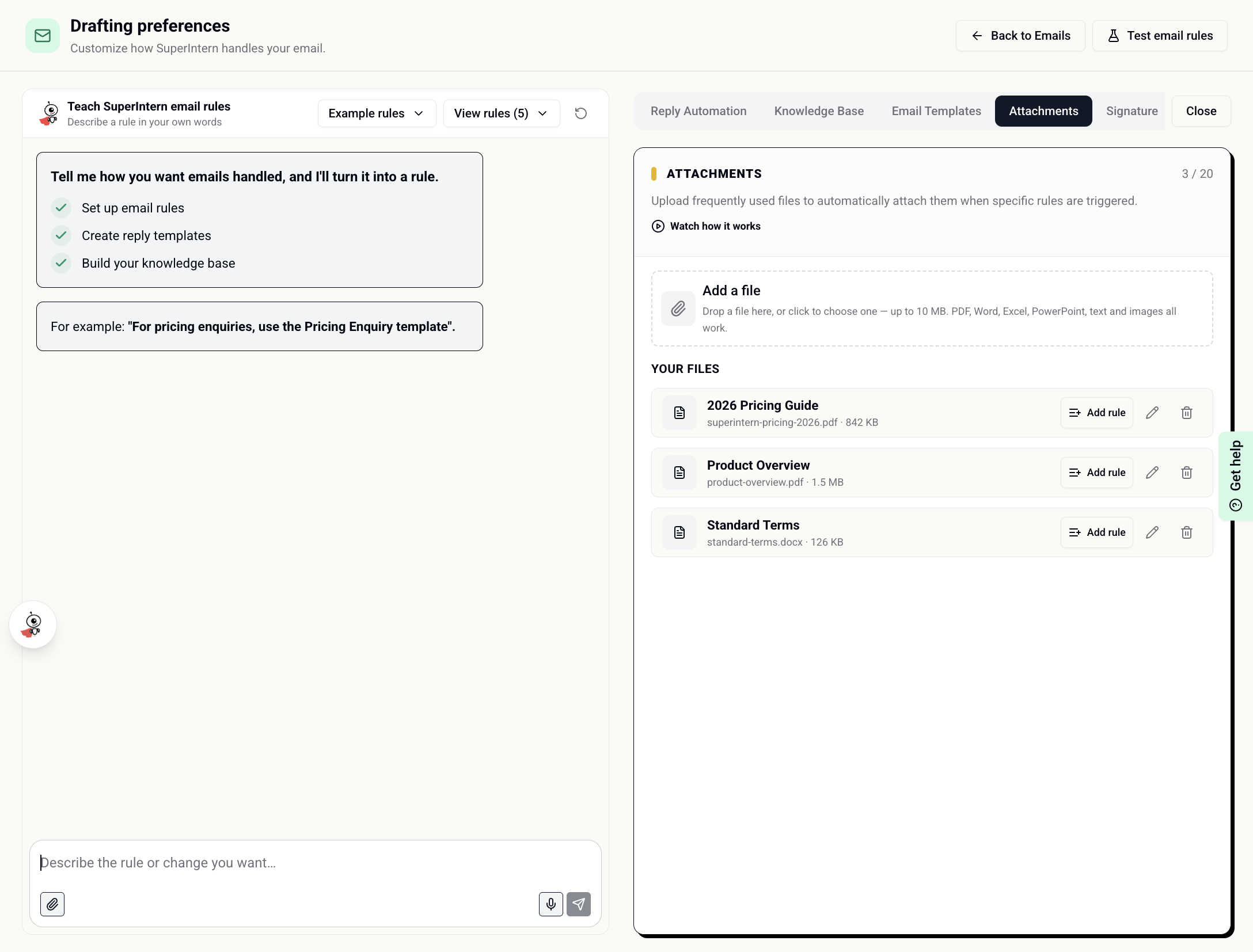
- Upload files by choosing them or dragging them into the panel
- Open a saved file to check it
- Rename its private library label
- Add a rule describing when SuperIntern should attach it
- Delete files you no longer use
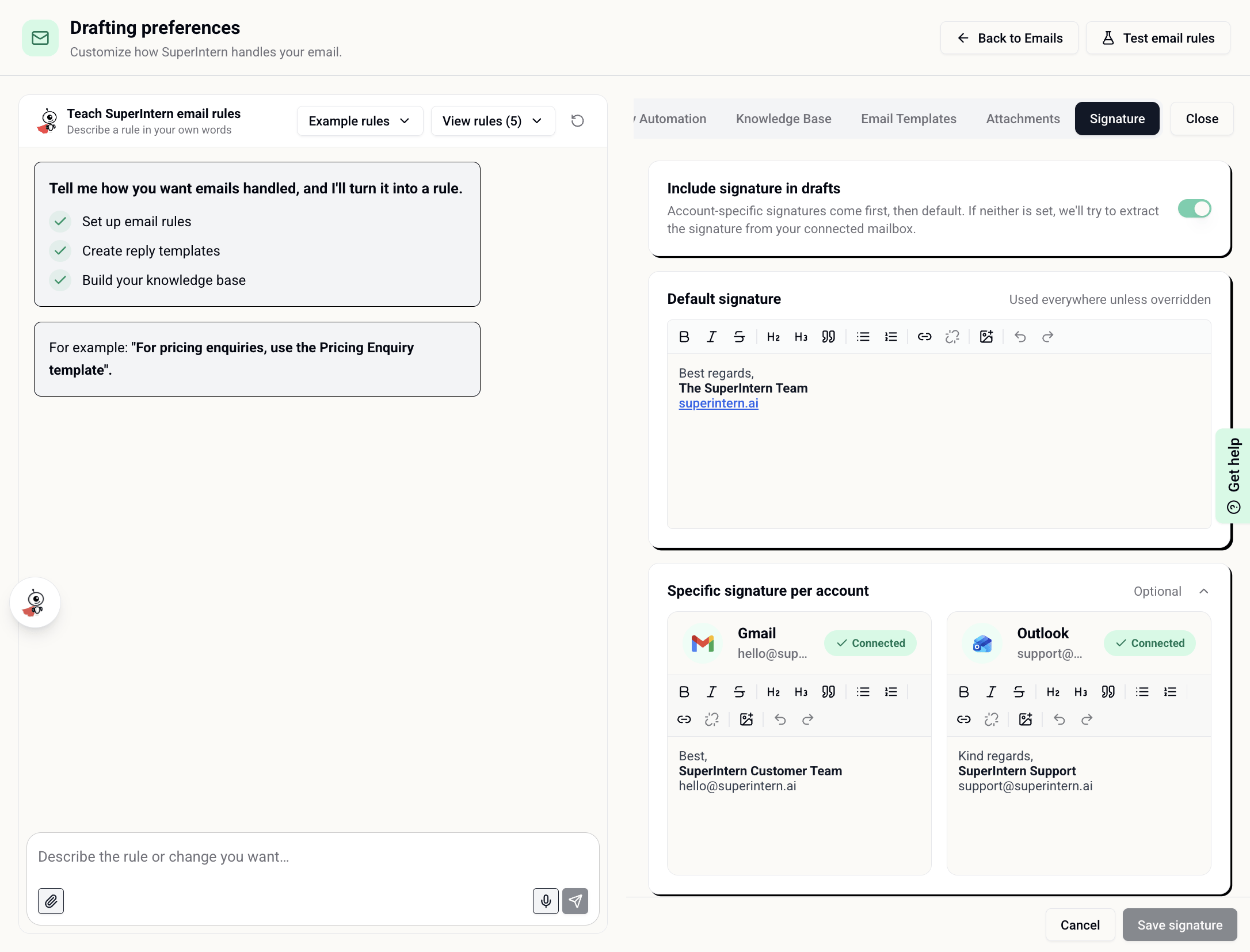
Signature
Enable Include signature in drafts to append a signature to email SuperIntern prepares. Signature selection follows this order:- A signature configured for the connected Gmail or Outlook account
- Your default signature
- A signature detected from the connected mailbox, when neither custom signature is set
Test your email rules
Select Test email rules at the top of Drafting Preferences to run a dry test with a sample incoming email or a recent message from your connected inbox.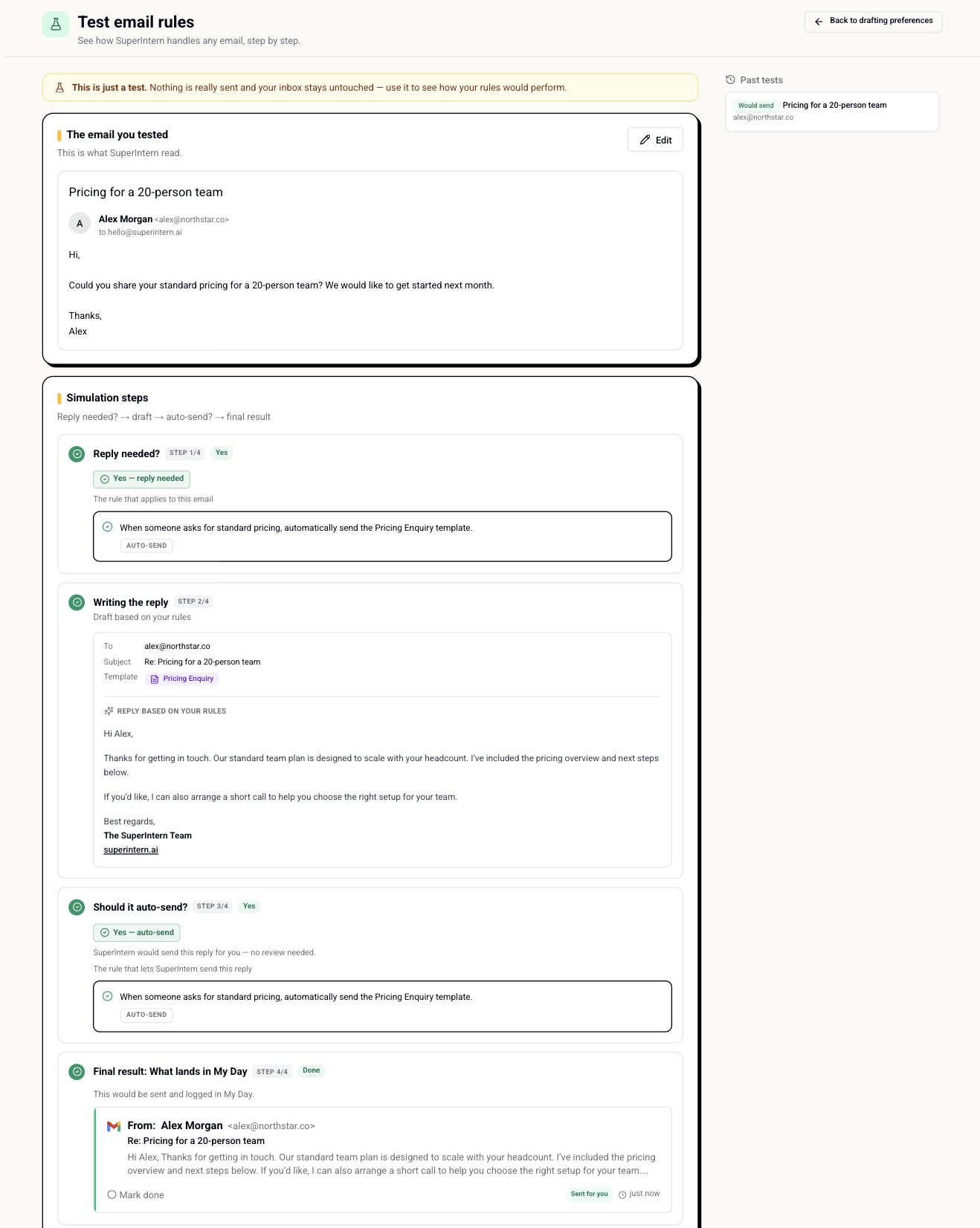
- Whether the email needs a reply and which rule applies
- The reply SuperIntern would write, including any selected template
- Whether the reply would be sent automatically or wait for review
- What the resulting item would look like in My Day
Testing uses the same AI drafting and send-decision steps as the live email flow, so a test consumes credits even though it does not modify your mailbox.
Recommended setup order
1
Turn on Reply Automation
Leave auto-send off at first so replies wait for your review while you learn how SuperIntern handles your email.
2
Add your core rules and resources
Configure tone and handling rules, then add any knowledge, templates, attachments, and signatures the drafts should use.
3
Test representative messages
Try common requests, unusual edge cases, and messages from important senders in Test email rules.
4
Add narrowly scoped auto-send rules
Enable auto-send only for repeatable situations where the matching conditions and response are clear.