

Opening an Email Action Item
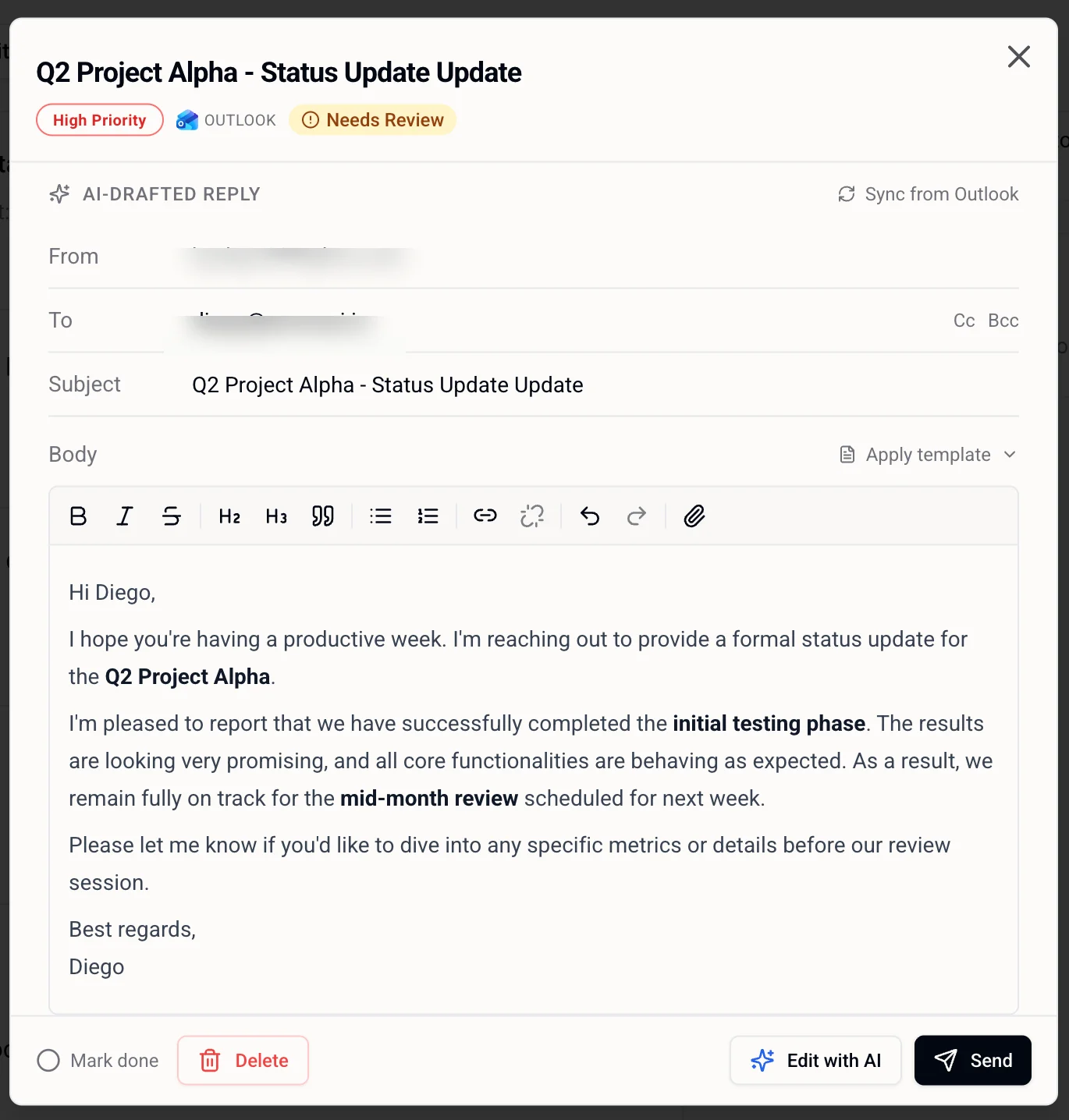
Click any email action item on the My Day page to open the detail dialog. At the top you’ll see:- Priority — High, Medium, or Low
- Provider badge — Gmail or Outlook, linking to the draft in your inbox
- Status — e.g. Needs Review when it’s waiting on you
The Draft
Email action items show an AI-Drafted Reply — a complete email your intern has written, ready to send. The draft includes:- From — your connected email address (read-only)
- To — pre-filled from the original email, editable
- Cc / Bcc — hidden by default, click to add
- Subject — editable
- Body — a rich text editor with formatting (bold, italic, headings, lists, links, attachments)
Received Email
If the draft is a reply to an incoming email, an expanded Received Email section appears above the draft. The dialog opens at the AI-Drafted Reply heading, so the reply fields are immediately visible; scroll up to read the original message for context, or click its section header to collapse it.Sync from Provider
If you’ve edited the draft directly in Gmail or Outlook, use Sync from [Provider] to pull in the latest version from your inbox.Apply Template
Use Apply template to replace the body with one of your saved email templates, then customize from there.Sending
When you’re ready:- Send — sends the email immediately from your connected account
- Mark done — closes the item without sending (useful if you handled it elsewhere)
- Delete — removes the action item entirely
Edit with AI
Not quite right? Click Edit with AI and tell your intern what to change:Make it more concise and remove the second paragraph.Your intern revises the draft and the new version appears automatically. You can edit with AI as many times as needed before sending.