> ## Documentation Index
> Fetch the complete documentation index at: https://docs.superintern.ai/llms.txt
> Use this file to discover all available pages before exploring further.
# Your Personal Assistant on WhatsApp
> A five-minute tour for new users: set reminders, get alerted about important email, reply without opening your inbox, and teach SuperIntern how to handle your mail — all from WhatsApp.
Once SuperIntern is connected to WhatsApp, it works like a personal assistant you message all day: it reminds you about things, watches your inbox, drafts and sends email for you, and learns how you like things handled.
This page walks through the four things new users should try first. Everything below also works on [Telegram](/chat/telegram) and [WeChat](/chat/wechat) — WhatsApp is just the example.
## Before You Start
In the web app, connect Gmail or Outlook from **More → Integrations**. This is what lets SuperIntern watch for important messages and draft replies.
Click the **WhatsApp icon** in the **Platforms** row at the bottom of the sidebar and follow the prompts, or connect it during onboarding. See [Chat on WhatsApp](/chat/whatsapp) for details.
Once the WhatsApp icon shows green, open the chat and try the examples below — just type naturally, no commands needed. You can also send **voice notes** instead of typing.
## 1. Set Reminders
Tell SuperIntern what to remind you about and when. It confirms the schedule, then messages you on WhatsApp at the right time:
```
Remind me tomorrow at 9am to send Sarah the final Bali itinerary.
```
```
Remind me every Friday at 4pm to chase unpaid deposits.
```
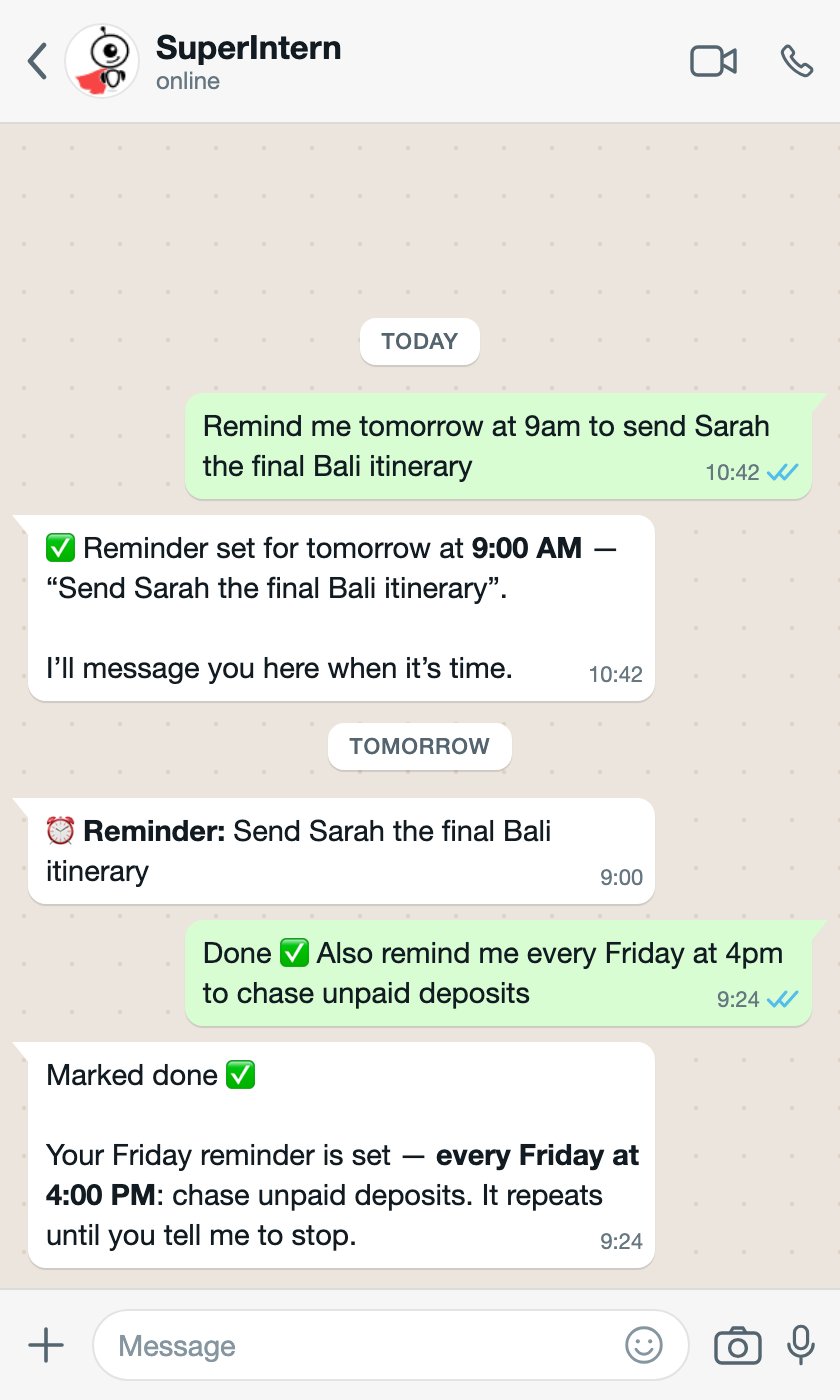 Reminders repeat until you cancel them, and you can manage everything in chat — ask `What reminders do I have coming up?` or say `Move it to Monday`. They also appear in **My Day → Reminders** in the web app. See [Reminders](/my-day/reminders).
## 2. Hear About Important Email — Without Checking Your Inbox
SuperIntern monitors your connected mailbox in the background. When something important arrives — a client confirming a booking, a payment question, a deadline — it messages you on WhatsApp with a short summary and offers to draft the reply.
Reminders repeat until you cancel them, and you can manage everything in chat — ask `What reminders do I have coming up?` or say `Move it to Monday`. They also appear in **My Day → Reminders** in the web app. See [Reminders](/my-day/reminders).
## 2. Hear About Important Email — Without Checking Your Inbox
SuperIntern monitors your connected mailbox in the background. When something important arrives — a client confirming a booking, a payment question, a deadline — it messages you on WhatsApp with a short summary and offers to draft the reply.
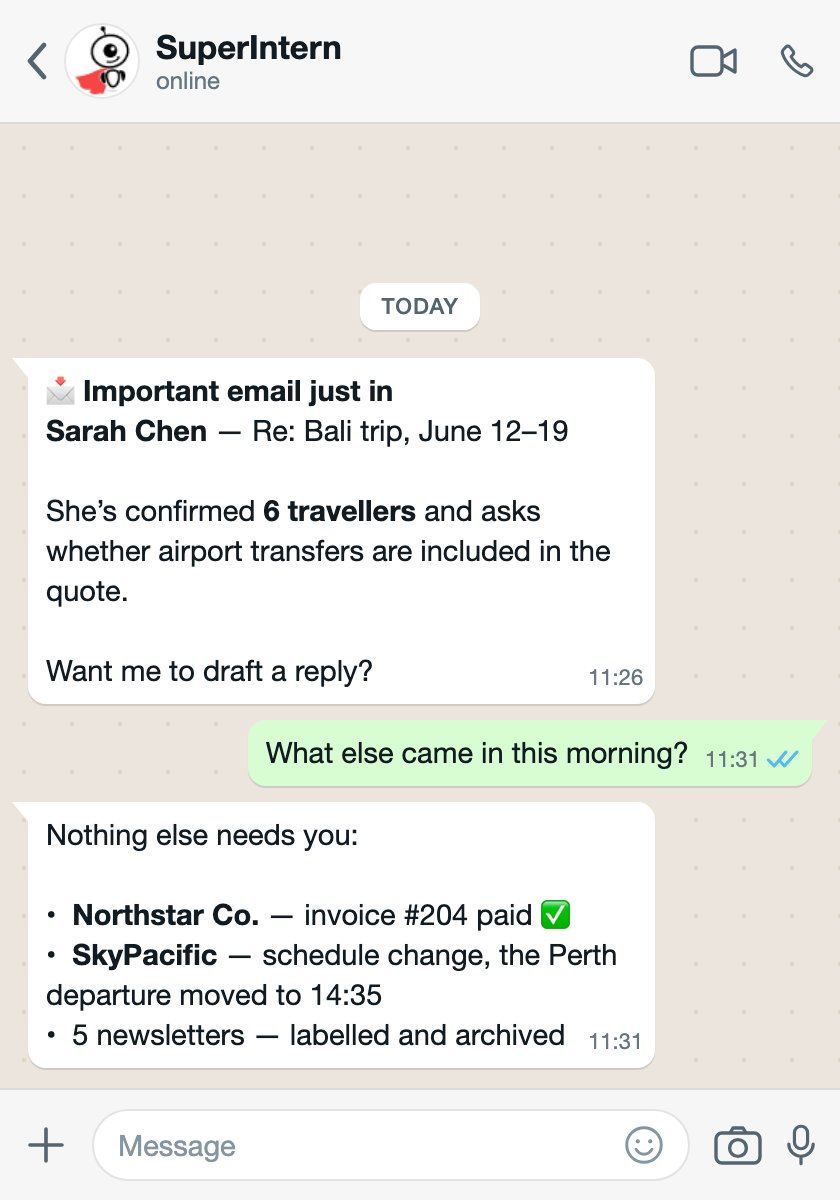 You can also ask about your inbox any time:
```
Any important emails this morning?
```
```
Did the deposit confirmation from Northstar come in?
```
```
Summarize the email from Sarah and suggest a reply.
```
To tune what counts as important, just tell it — for example `Only ping me about client emails, not newsletters` or `Don't message me after 7pm`. See [Heartbeats](/intern/heartbeats) for how proactive check-ins work.
## 3. Reply and Send Email From Chat
Tell SuperIntern what you want to say, and it writes the full email and shows it to you in WhatsApp first. Nothing is sent until you approve it:
```
Reply to Sarah: transfers are included, and we need the deposit by Friday to hold the villa.
```
You can also ask about your inbox any time:
```
Any important emails this morning?
```
```
Did the deposit confirmation from Northstar come in?
```
```
Summarize the email from Sarah and suggest a reply.
```
To tune what counts as important, just tell it — for example `Only ping me about client emails, not newsletters` or `Don't message me after 7pm`. See [Heartbeats](/intern/heartbeats) for how proactive check-ins work.
## 3. Reply and Send Email From Chat
Tell SuperIntern what you want to say, and it writes the full email and shows it to you in WhatsApp first. Nothing is sent until you approve it:
```
Reply to Sarah: transfers are included, and we need the deposit by Friday to hold the villa.
```
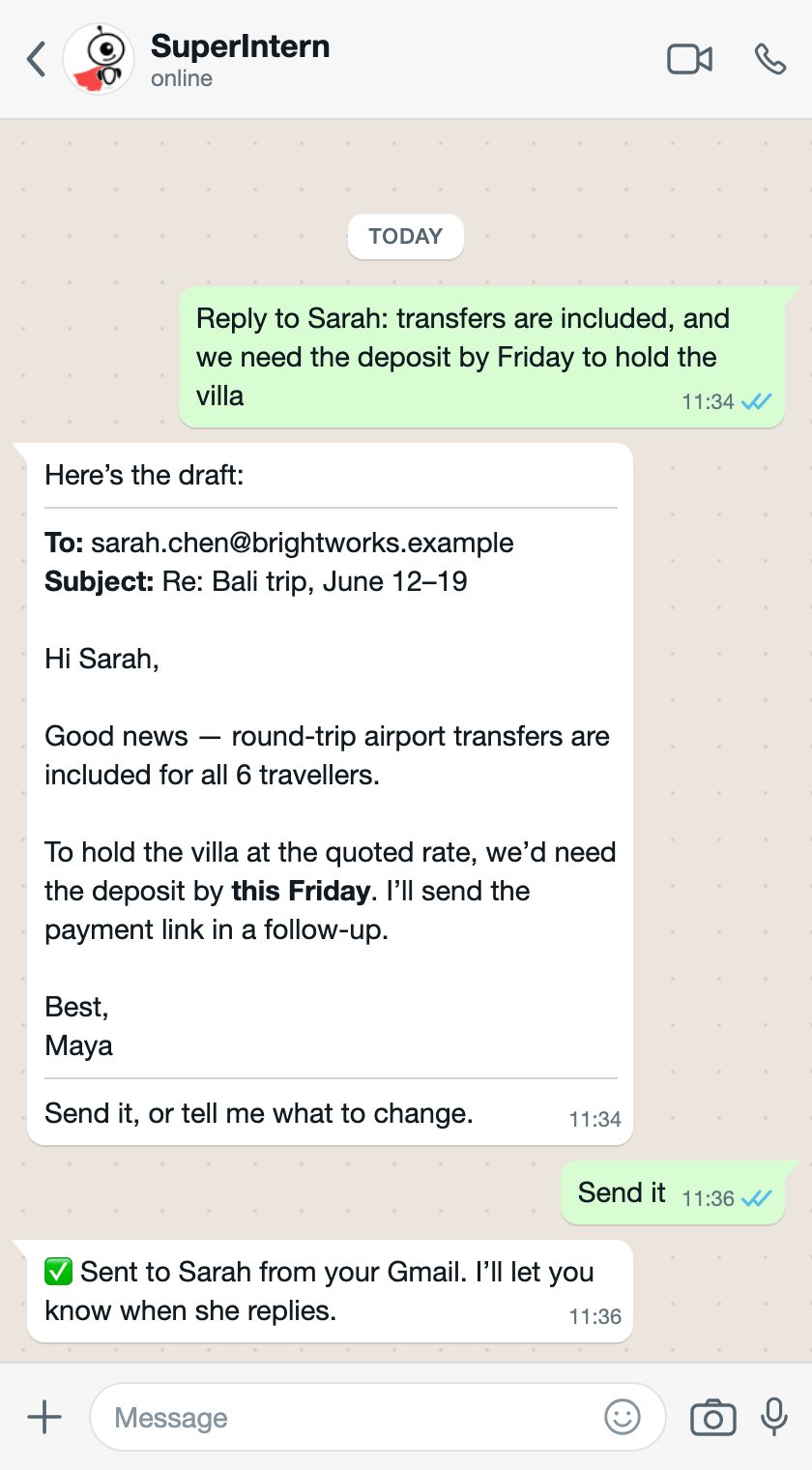 Reply `Send it` to send from your connected Gmail or Outlook account, or ask for changes first — `Make it shorter`, `Mention the payment link`, `Sounds too formal`. New emails work the same way:
```
Email jordan@oakandco.example and ask if Thursday still works for the site visit.
```
## 4. Teach SuperIntern How to Handle Your Email
This is where SuperIntern stops being a tool and starts being an assistant. Describe how you want your email handled — in plain language, right in WhatsApp — and it turns your instructions into standing rules it follows from then on:
```
When a client asks about visa requirements, reply using our visa checklist and keep it short.
```
```
Never auto-send to new clients — always show me first.
```
```
Keep replies friendly but professional, and always sign off with "Maya @ Wander Travel".
```
Reply `Send it` to send from your connected Gmail or Outlook account, or ask for changes first — `Make it shorter`, `Mention the payment link`, `Sounds too formal`. New emails work the same way:
```
Email jordan@oakandco.example and ask if Thursday still works for the site visit.
```
## 4. Teach SuperIntern How to Handle Your Email
This is where SuperIntern stops being a tool and starts being an assistant. Describe how you want your email handled — in plain language, right in WhatsApp — and it turns your instructions into standing rules it follows from then on:
```
When a client asks about visa requirements, reply using our visa checklist and keep it short.
```
```
Never auto-send to new clients — always show me first.
```
```
Keep replies friendly but professional, and always sign off with "Maya @ Wander Travel".
```
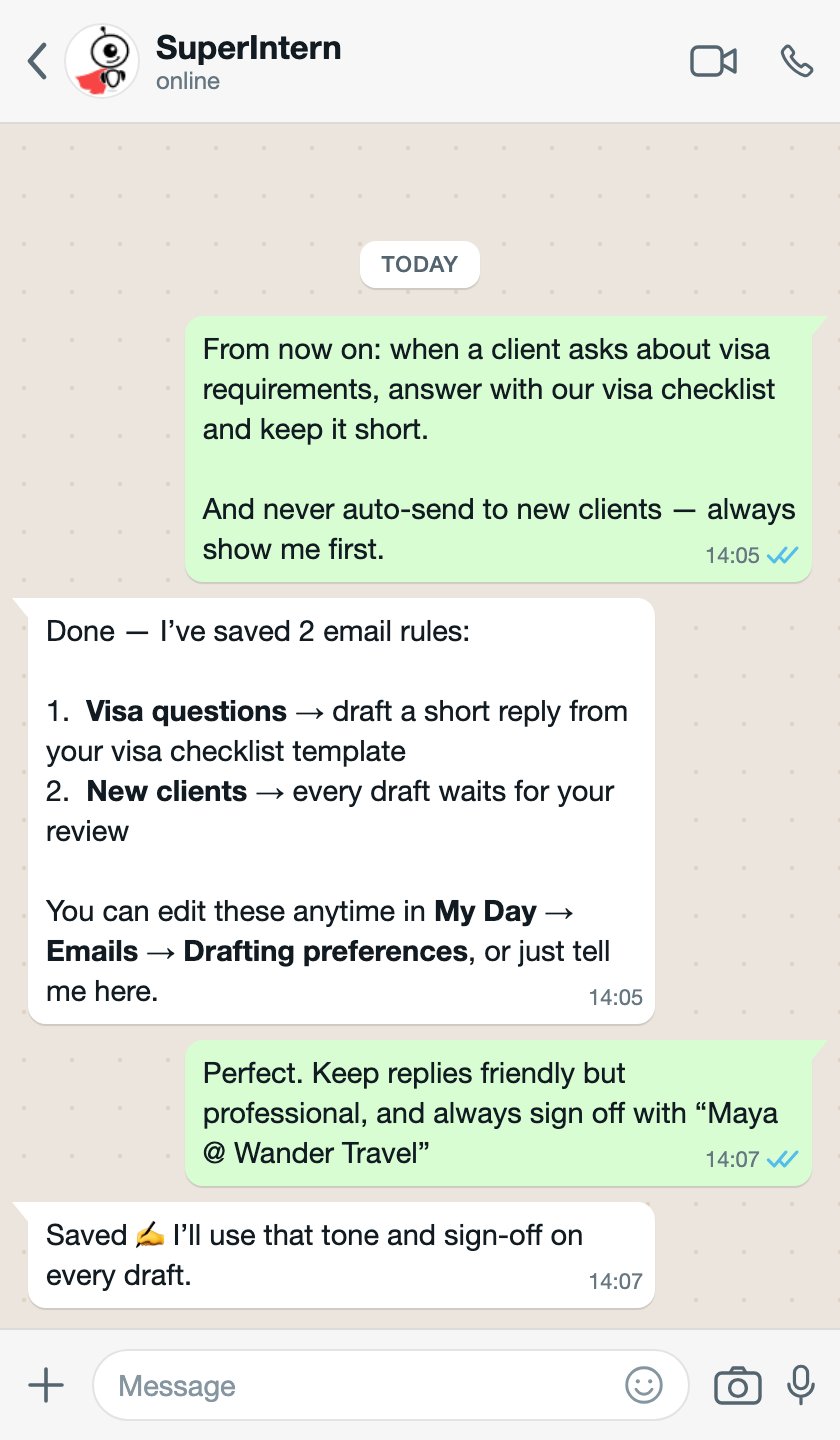 Rules you teach in chat appear in **My Day → Emails → Drafting preferences**, where you can review, edit, and test them — along with templates, attachments, and your signature. See [Drafting Preferences](/my-day/drafting-preferences).
Correct it like you would a new hire. If a draft misses the mark, say why — `Too long, and never offer discounts unprompted` — and it remembers for next time. See [Memory](/intern/memory).
## Going Further: Organize Your Inbox With Labels
Ready for more? Email Categorization sorts every new email as it arrives — labelling client enquiries, payments, and marketing separately, and archiving the noise before you ever see it.
Set it up in the web app:
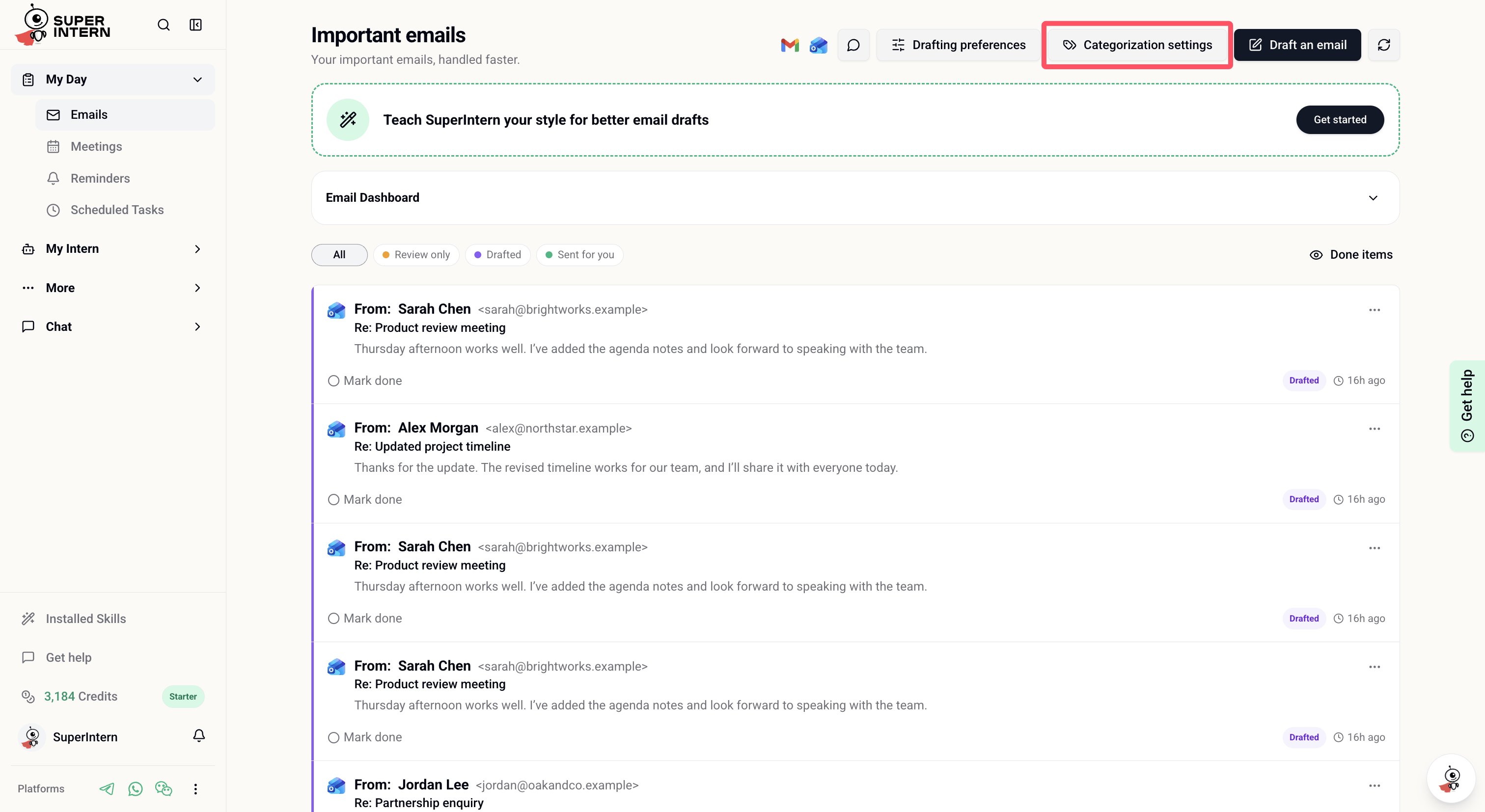
Go to **My Day → Emails** and select **Categorization settings**.
Rules you teach in chat appear in **My Day → Emails → Drafting preferences**, where you can review, edit, and test them — along with templates, attachments, and your signature. See [Drafting Preferences](/my-day/drafting-preferences).
Correct it like you would a new hire. If a draft misses the mark, say why — `Too long, and never offer discounts unprompted` — and it remembers for next time. See [Memory](/intern/memory).
## Going Further: Organize Your Inbox With Labels
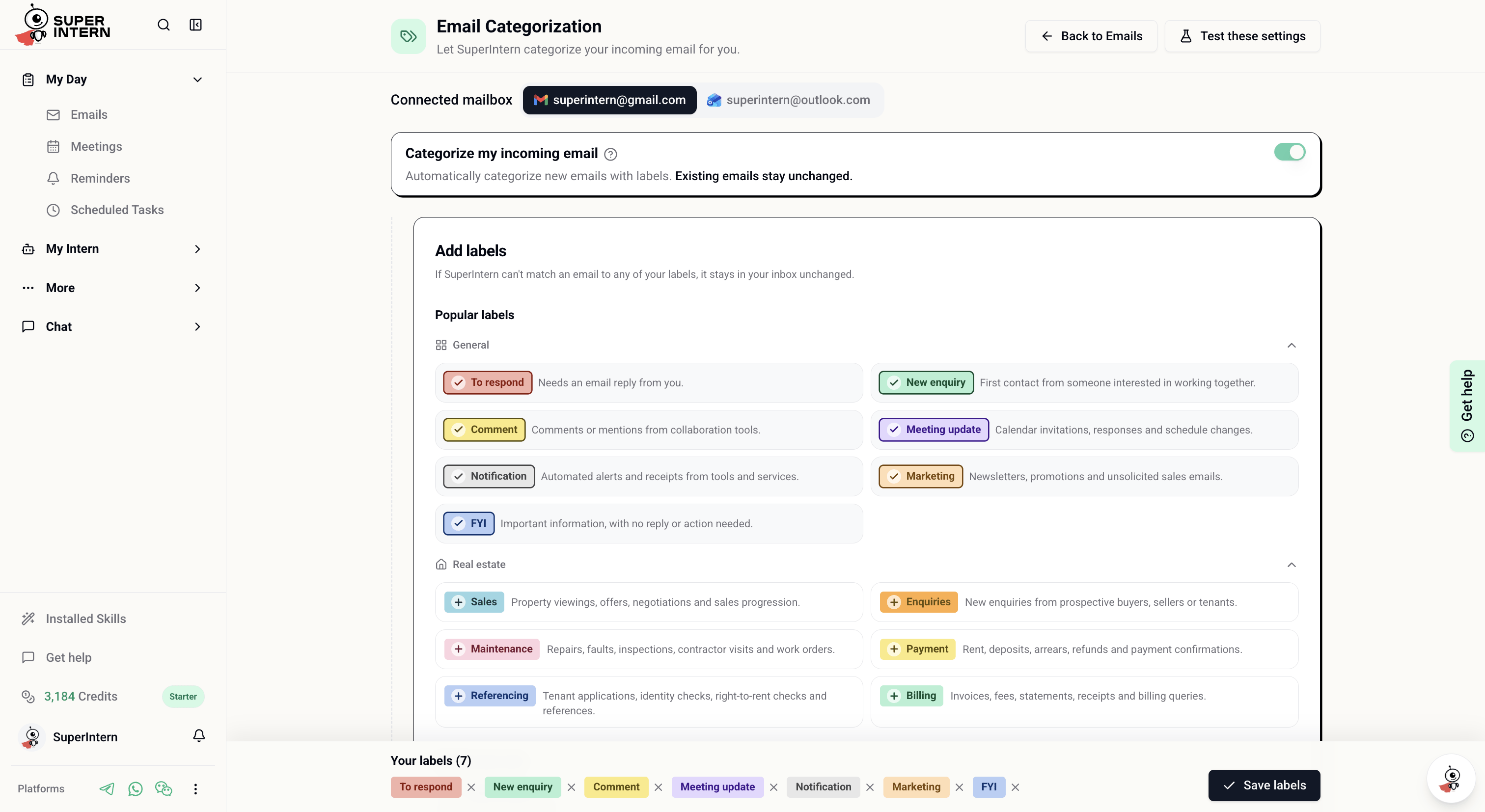
Ready for more? Email Categorization sorts every new email as it arrives — labelling client enquiries, payments, and marketing separately, and archiving the noise before you ever see it.
Set it up in the web app:
Go to **My Day → Emails** and select **Categorization settings**.
 Pick from the preset labels or create your own — a label just needs a name and a plain-language description of what belongs there.
 Keep matching email in your inbox, or auto-archive things like newsletters and notifications. New email is sorted automatically from then on.
The full guide, including label priorities and testing: [Email Categorization](/my-day/email-categorization).
## Your First Day, In Five Messages
Copy these into WhatsApp to get set up in a couple of minutes:
```
I run a travel agency. Client emails about bookings, payments, and
itineraries are the most important thing — flag those to me here.
```
```
Remind me every weekday at 8:30am to review my inbox.
```
```
What's in my inbox this morning?
```
```
Draft a reply to the most recent client email and show me.
```
```
Keep all replies under 150 words and match my tone.
```
## What's Next
Setup details, voice notes and photos, and what stays in sync.
Reply automation, rules, templates, attachments, and signatures.
Automatic labels and inbox actions for every new email.
Manage reminders and todos from My Day or from chat.
Keep matching email in your inbox, or auto-archive things like newsletters and notifications. New email is sorted automatically from then on.
The full guide, including label priorities and testing: [Email Categorization](/my-day/email-categorization).
## Your First Day, In Five Messages
Copy these into WhatsApp to get set up in a couple of minutes:
```
I run a travel agency. Client emails about bookings, payments, and
itineraries are the most important thing — flag those to me here.
```
```
Remind me every weekday at 8:30am to review my inbox.
```
```
What's in my inbox this morning?
```
```
Draft a reply to the most recent client email and show me.
```
```
Keep all replies under 150 words and match my tone.
```
## What's Next
Setup details, voice notes and photos, and what stays in sync.
Reply automation, rules, templates, attachments, and signatures.
Automatic labels and inbox actions for every new email.
Manage reminders and todos from My Day or from chat.