> ## Documentation Index
> Fetch the complete documentation index at: https://docs.superintern.ai/llms.txt
> Use this file to discover all available pages before exploring further.
# How to Create a Skill
> Build a custom SuperIntern skill — define its name, description, instructions, and tools, then test, refine, and optionally share it with others.
You can build a custom skill through the SuperIntern web app — no code required. A good skill packages a clear goal, the right instructions, and the tools it needs into a reusable ability.
Open **My Intern → Skills → Create New Skill** from the web app. You can also open **My Intern → Skills → Creator Center** to manage skills you have already created.
## Anatomy of a Skill
Every skill has four parts:
| Part | What It Does |
| ---------------- | ------------------------------------------------ |
| **Name** | How you invoke it ("the LinkedIn skill") |
| **Description** | Tells your intern when to reach for it |
| **Instructions** | The rules and voice it follows when it runs |
| **Tools** | The integrations and actions it's allowed to use |
## Build It Step by Step
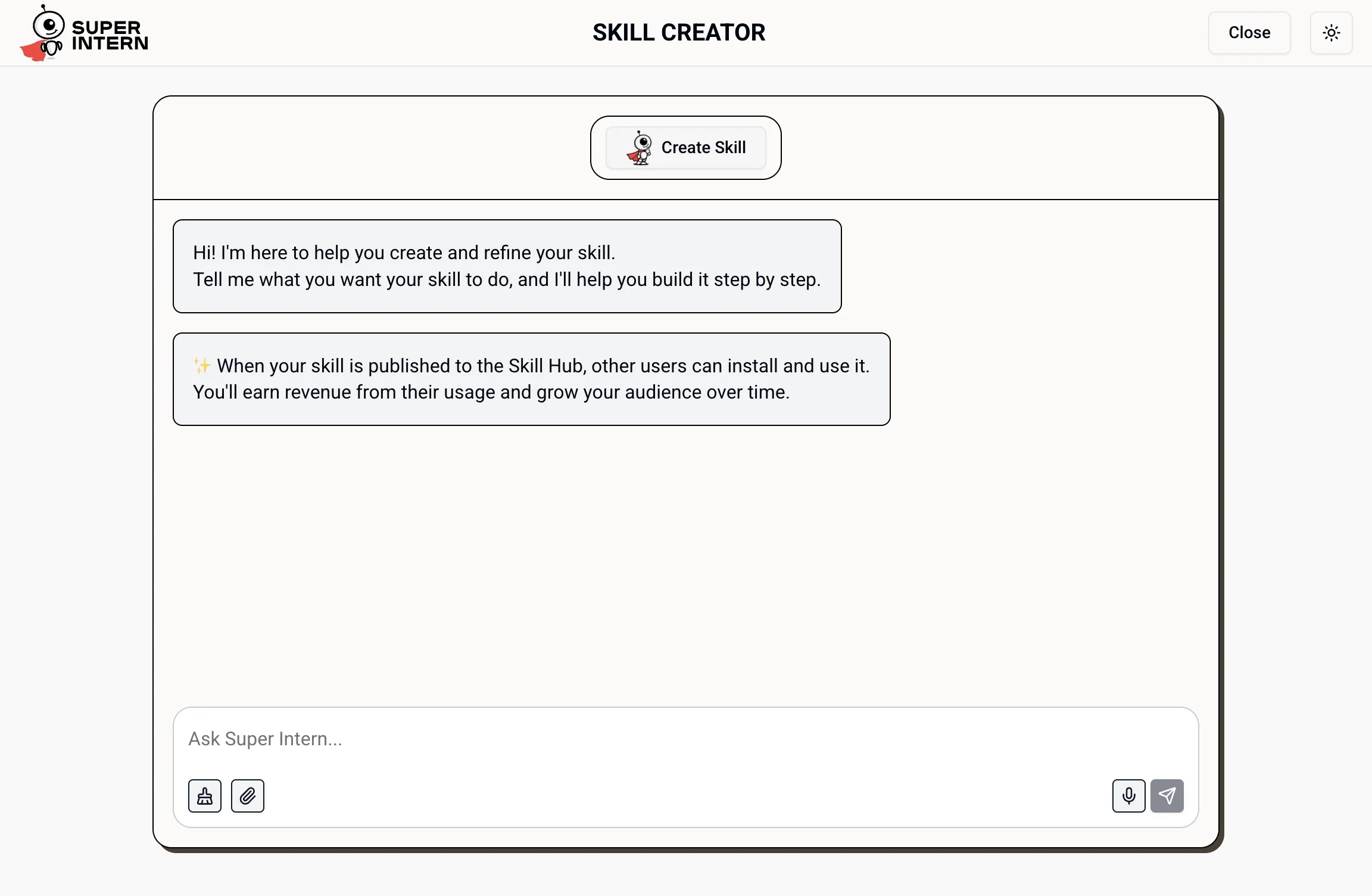
In the web app, go to **My Intern → Skills → Create New Skill**. The Skill Creator opens a guided chat — describe what you want the skill to do, and it helps you build it step by step, including the name and description. The description is what your intern uses to decide when the skill applies, so be specific.
 Describe exactly how the skill should behave — its goal, tone, formatting, and any hard rules. Treat it like onboarding a specialist.
*Example:* "Draft LinkedIn posts in a casual first-person voice. Always lead with a hook, keep under 1,300 characters, and end with one question."
Grant only the integrations the skill needs (for example, the LinkedIn and web search tools). Fewer tools means more predictable behavior.
Use the **Test** tab to try the skill before relying on it in regular chat. Refine the instructions based on what you get back.
```
Use the new skill to draft a post about our funding announcement.
```
Use the skill settings to install the skill to your SuperIntern. Once installed, it appears in chat and can be used for scheduled tasks.
Keep the skill private, or submit it for publishing so others can install it from the Skill Hub.
## Viewing Your Created Skills
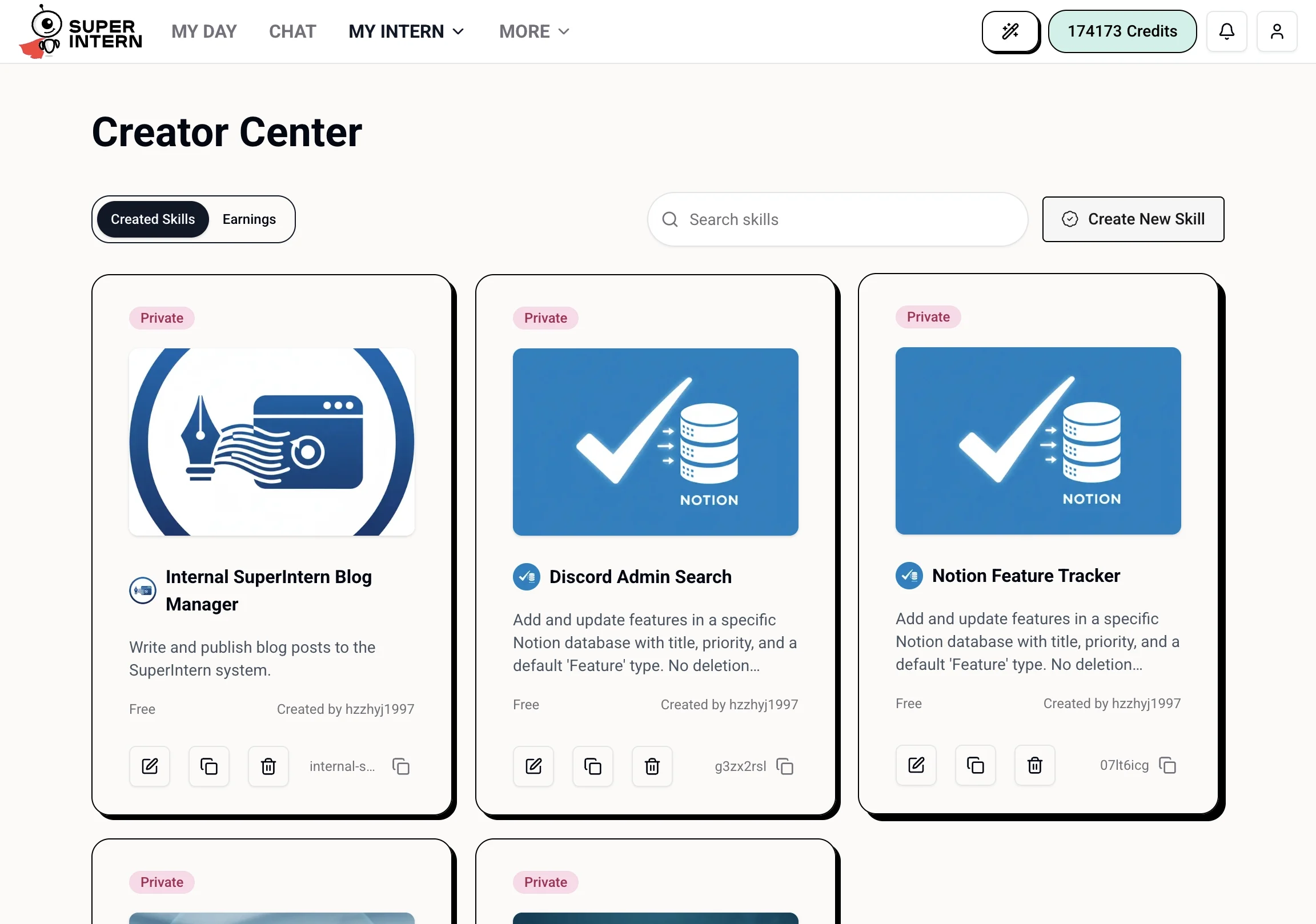
Every skill you've built lives in **My Intern → Skills → Creator Center**. From there you can edit, duplicate, or delete a skill, switch it between private and published, and track earnings from published skills under the **Earnings** tab.
Describe exactly how the skill should behave — its goal, tone, formatting, and any hard rules. Treat it like onboarding a specialist.
*Example:* "Draft LinkedIn posts in a casual first-person voice. Always lead with a hook, keep under 1,300 characters, and end with one question."
Grant only the integrations the skill needs (for example, the LinkedIn and web search tools). Fewer tools means more predictable behavior.
Use the **Test** tab to try the skill before relying on it in regular chat. Refine the instructions based on what you get back.
```
Use the new skill to draft a post about our funding announcement.
```
Use the skill settings to install the skill to your SuperIntern. Once installed, it appears in chat and can be used for scheduled tasks.
Keep the skill private, or submit it for publishing so others can install it from the Skill Hub.
## Viewing Your Created Skills
Every skill you've built lives in **My Intern → Skills → Creator Center**. From there you can edit, duplicate, or delete a skill, switch it between private and published, and track earnings from published skills under the **Earnings** tab.
 ## Refining a Skill
You can update instructions any time, in the app or in chat:
```
Add to the research skill rules: always cite sources with publication dates.
```
Start narrow. A skill that does one thing well beats a sprawling one that tries to do everything. Add scope only after the core works.
Once published to the Skill Hub, your skill appears in the [Public Skills](/skills/official-skills) library for others to install — and you earn revenue from their usage, tracked in the Creator Center's **Earnings** tab.
## Refining a Skill
You can update instructions any time, in the app or in chat:
```
Add to the research skill rules: always cite sources with publication dates.
```
Start narrow. A skill that does one thing well beats a sprawling one that tries to do everything. Add scope only after the core works.
Once published to the Skill Hub, your skill appears in the [Public Skills](/skills/official-skills) library for others to install — and you earn revenue from their usage, tracked in the Creator Center's **Earnings** tab.