> ## Documentation Index
> Fetch the complete documentation index at: https://docs.superintern.ai/llms.txt
> Use this file to discover all available pages before exploring further.
# Reports
> Use Reports to review your daily recap, see what SuperIntern handled for you, and track estimated time saved across email, meetings, social posts, and scheduled tasks.
Reports show what SuperIntern handled for you on a given day. Instead of piecing together activity from email, meetings, social tools, and scheduled tasks, you get one daily recap with metrics, an estimated time-saved total, and, when available, an AI-generated daily report.
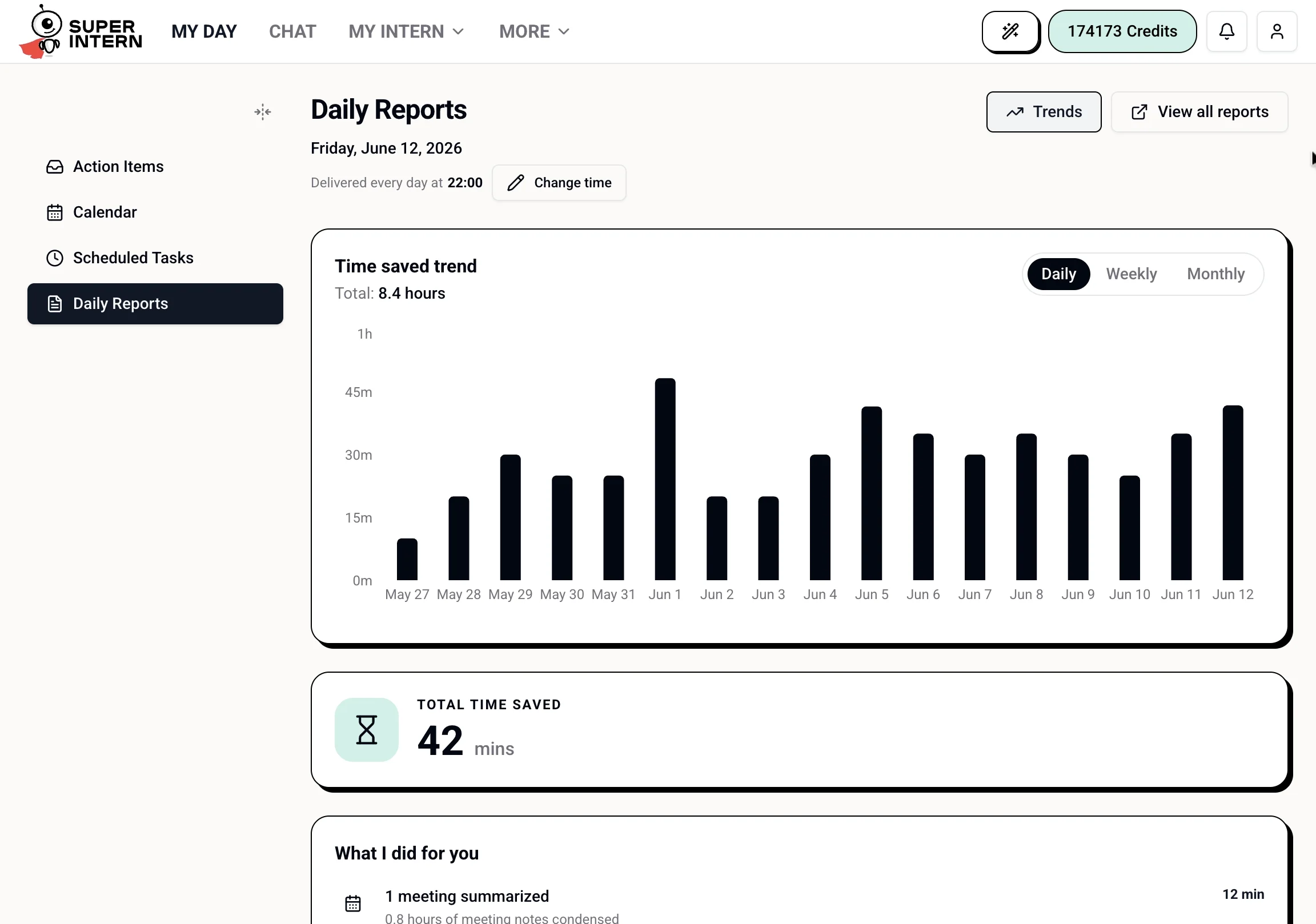
Open **My Intern → Reports** from the web app, or use the **Daily Reports** tab of [My Day](/my-day/overview) for today's recap, then choose **View all reports** for the full Reports page.
 ## What Reports Show
A date-based view of what SuperIntern handled that day.
An estimated total based on activity across email, meetings, social posts, and scheduled tasks.
A breakdown of recorded work, such as emails handled, meetings summarized, contacts added, posts published, and scheduled tasks completed.
A daily, weekly, or monthly trend view for comparing estimated time saved over time.
## Daily Report Delivery
SuperIntern can save a structured daily report when the daily report workflow runs. In **My Day → Daily Reports**, you can see today's report when one exists and adjust the nightly delivery time shown there.
The daily report workflow is a scheduled heartbeat. Its default time is 10:00 PM in your local timezone, and it must be enabled or created before generated report text appears. When it runs, SuperIntern reviews context from today's notes, chats, meetings, calendar events, completed todos, actions, and workflow tasks. It saves the report so you can review it later from the Reports page or the Telegram Mini App reports link.
## Choose a Date
Reports are organized by date. Use the date picker to switch days with recorded activity. If there is no activity for a date, the page shows that no data was recorded.
Reports become more useful as you connect more tools. Email, calendar and meeting tools, social accounts, contacts, and scheduled tasks all contribute to the recap.
## How Time Saved Is Calculated
The time saved number is an estimate. It is calculated from the work SuperIntern completed or helped with:
| Activity | Estimate |
| ------------------------- | -------------------------------------------- |
| Emails read | 10 seconds saved per email |
| AI-drafted emails sent | 10 minutes saved per sent email |
| Meetings summarized | 15 minutes saved per hour of meeting |
| LinkedIn / X posts sent | 15 minutes saved per post |
| Scheduled tasks completed | 5 minutes saved per completed scheduled task |
Contacts added are shown in the activity breakdown, but they are not currently included in the time-saved total. The calculation is meant to give you a directional sense of how much routine work your intern absorbed. It is not a billing metric.
## What Counts Toward Reports
* **Email** — messages read and AI-drafted emails that were sent.
* **Meetings** — meetings summarized and meeting minutes processed.
* **Contacts** — contacts captured from emails and meetings. These are shown in the breakdown but do not yet add to estimated time saved.
* **Scheduled tasks** — background tasks completed by your intern.
* **Social posts** — LinkedIn and X/Twitter posts published through connected tools.
## Ask for a Recap in Chat
You can also ask SuperIntern to summarize recent activity conversationally:
```
What did you do for me today?
```
```
Summarize this week so far.
```
```
What changed while I was away yesterday?
```
For recurring background work, see [Scheduled Tasks](/tasks). For meeting-specific notes, see [Calendar & Meetings](/my-day/calendar-and-meetings).
## What Reports Show
A date-based view of what SuperIntern handled that day.
An estimated total based on activity across email, meetings, social posts, and scheduled tasks.
A breakdown of recorded work, such as emails handled, meetings summarized, contacts added, posts published, and scheduled tasks completed.
A daily, weekly, or monthly trend view for comparing estimated time saved over time.
## Daily Report Delivery
SuperIntern can save a structured daily report when the daily report workflow runs. In **My Day → Daily Reports**, you can see today's report when one exists and adjust the nightly delivery time shown there.
The daily report workflow is a scheduled heartbeat. Its default time is 10:00 PM in your local timezone, and it must be enabled or created before generated report text appears. When it runs, SuperIntern reviews context from today's notes, chats, meetings, calendar events, completed todos, actions, and workflow tasks. It saves the report so you can review it later from the Reports page or the Telegram Mini App reports link.
## Choose a Date
Reports are organized by date. Use the date picker to switch days with recorded activity. If there is no activity for a date, the page shows that no data was recorded.
Reports become more useful as you connect more tools. Email, calendar and meeting tools, social accounts, contacts, and scheduled tasks all contribute to the recap.
## How Time Saved Is Calculated
The time saved number is an estimate. It is calculated from the work SuperIntern completed or helped with:
| Activity | Estimate |
| ------------------------- | -------------------------------------------- |
| Emails read | 10 seconds saved per email |
| AI-drafted emails sent | 10 minutes saved per sent email |
| Meetings summarized | 15 minutes saved per hour of meeting |
| LinkedIn / X posts sent | 15 minutes saved per post |
| Scheduled tasks completed | 5 minutes saved per completed scheduled task |
Contacts added are shown in the activity breakdown, but they are not currently included in the time-saved total. The calculation is meant to give you a directional sense of how much routine work your intern absorbed. It is not a billing metric.
## What Counts Toward Reports
* **Email** — messages read and AI-drafted emails that were sent.
* **Meetings** — meetings summarized and meeting minutes processed.
* **Contacts** — contacts captured from emails and meetings. These are shown in the breakdown but do not yet add to estimated time saved.
* **Scheduled tasks** — background tasks completed by your intern.
* **Social posts** — LinkedIn and X/Twitter posts published through connected tools.
## Ask for a Recap in Chat
You can also ask SuperIntern to summarize recent activity conversationally:
```
What did you do for me today?
```
```
Summarize this week so far.
```
```
What changed while I was away yesterday?
```
For recurring background work, see [Scheduled Tasks](/tasks). For meeting-specific notes, see [Calendar & Meetings](/my-day/calendar-and-meetings).