> ## Documentation Index
> Fetch the complete documentation index at: https://docs.superintern.ai/llms.txt
> Use this file to discover all available pages before exploring further.
# Email Categorization
> Automatically organize new Gmail and Outlook messages with labels that match the way you work.
Email Categorization automatically organizes new messages as they arrive. You choose the labels that matter to you and what each label should do; SuperIntern reads each incoming email and applies the best match.
It works with connected Gmail and Outlook mailboxes. Each mailbox has its own labels and settings, so you can organize work and personal inboxes differently.
## How it works
* **New email only** — Categorization starts with messages received after you turn it on. It does not reorganize older email already in your mailbox.
* **One label per email** — SuperIntern applies the single best matching label, keeping your inbox easy to scan.
* **Your priorities decide ties** — If an email matches more than one label, the label higher in your priority list wins.
* **You control where it goes** — Each label can keep matching email in your inbox, automatically archive it, or be turned off.
Email Categorization is separate from reply drafting. A label describes what an email is and where it belongs; your drafting settings decide whether SuperIntern writes a reply.
## Open Email Categorization
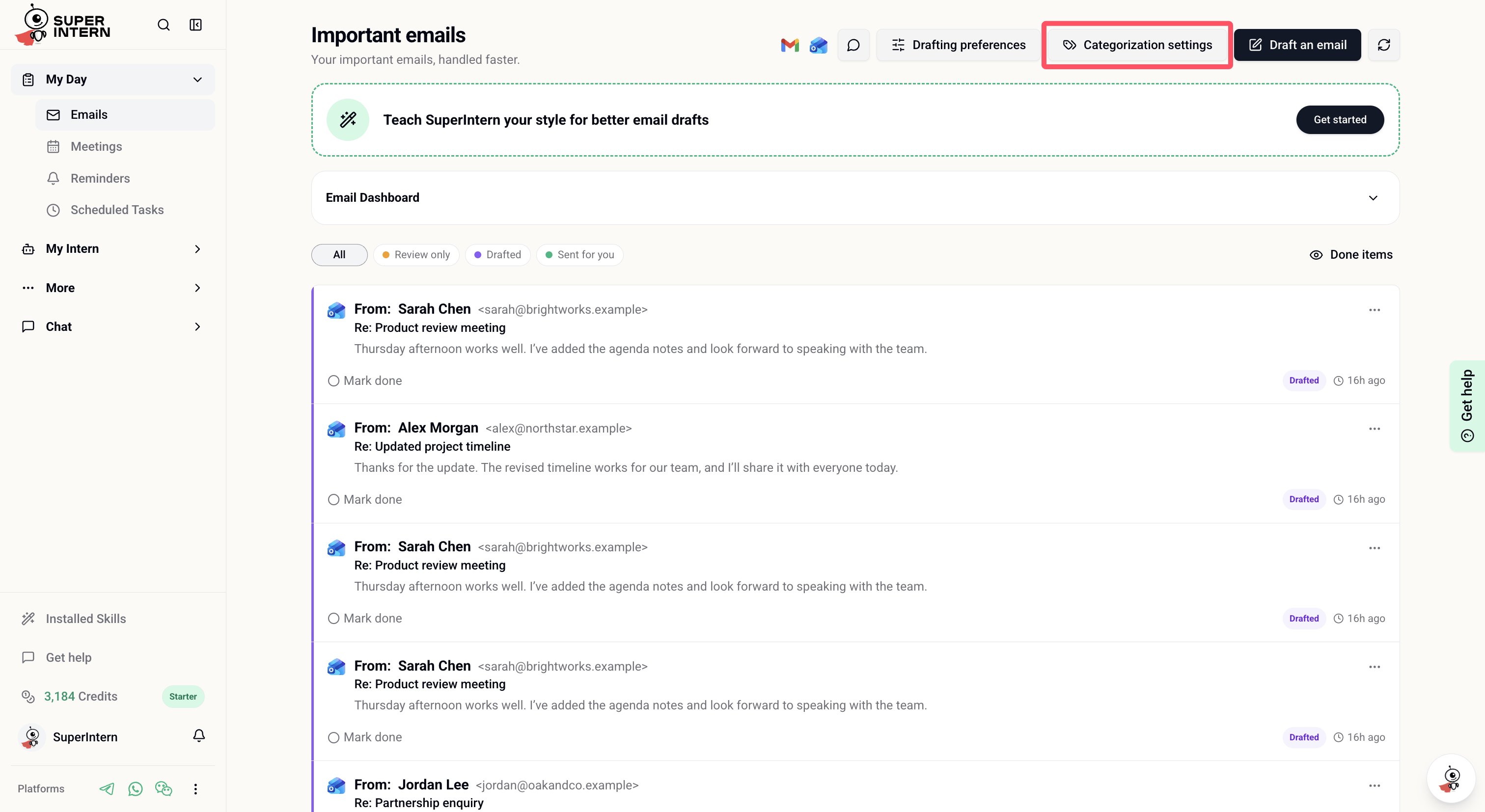
Go to **My Day → Emails**, then select **Categorization settings** at the top of the email view.
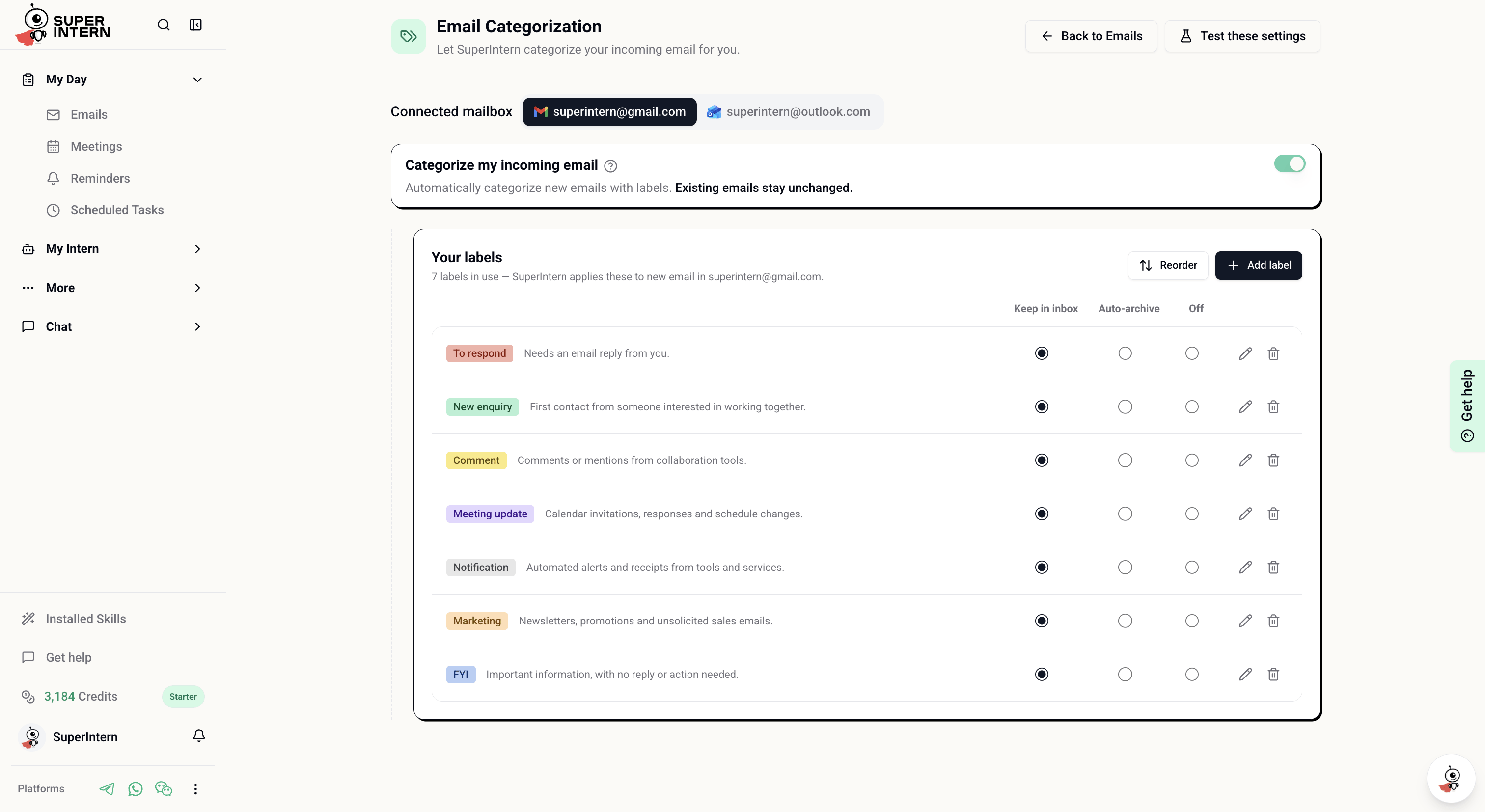
 If you have more than one connected mailbox, choose the Gmail or Outlook mailbox you want to configure. Each mailbox keeps its own labels, priority order, and inbox actions.
Turn on **Categorize my incoming email** to start categorizing new messages. SuperIntern usually processes new email within a minute, although it can occasionally take up to an hour.
If you have more than one connected mailbox, choose the Gmail or Outlook mailbox you want to configure. Each mailbox keeps its own labels, priority order, and inbox actions.
Turn on **Categorize my incoming email** to start categorizing new messages. SuperIntern usually processes new email within a minute, although it can occasionally take up to an hour.
 ## Choose your labels
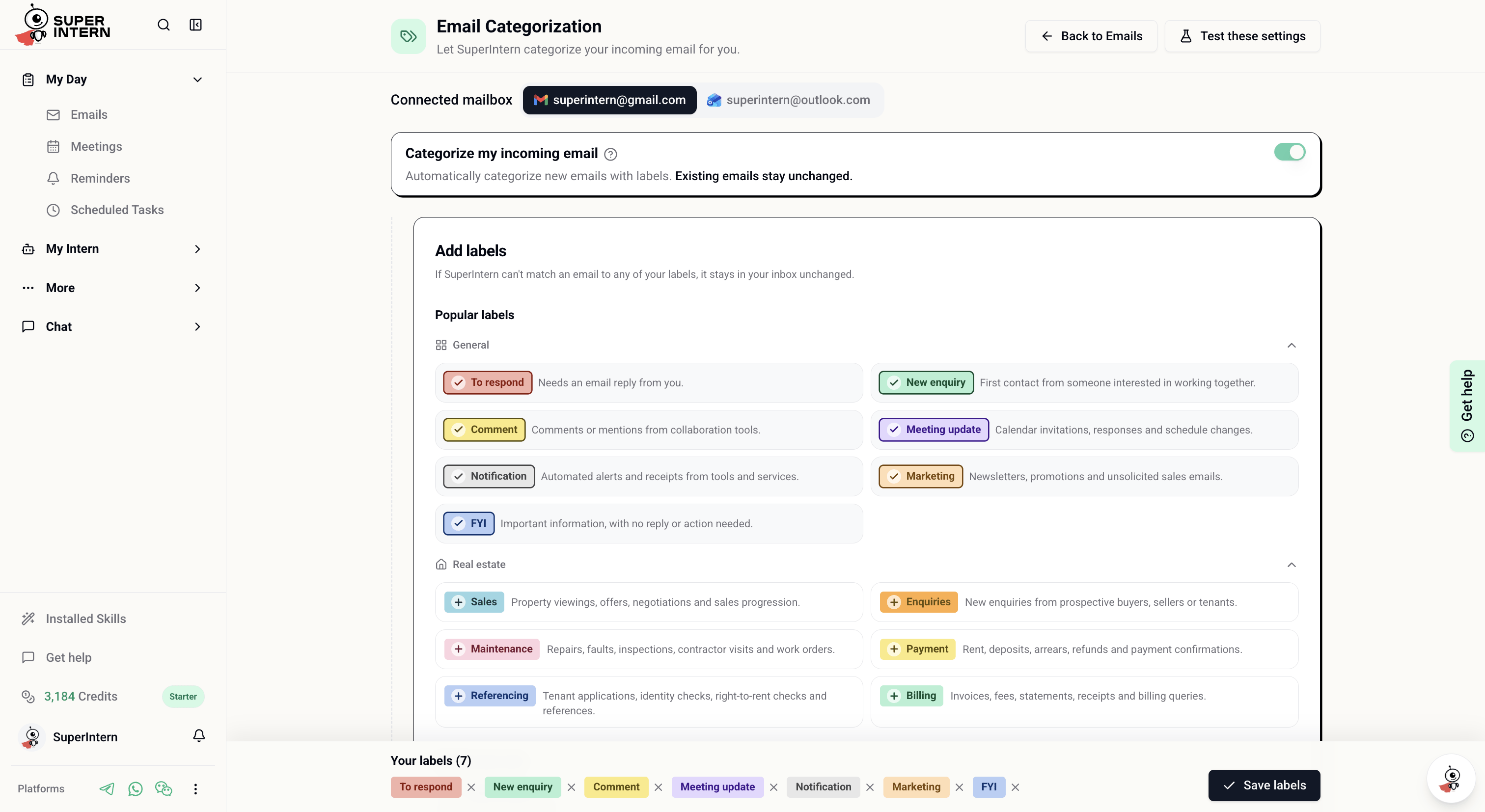
The first time you turn on categorization for a mailbox, select labels from **General** or **Real estate**. You can combine labels from both groups.
The General set covers common inbox patterns such as messages that need a response, meeting updates, notifications, marketing email, and useful information that does not need action. The Real estate set covers sales, enquiries, referencing, payments, billing, and maintenance.
Open each group and select the labels that match the way you work. You do not need to use every preset.
The **Your labels** area shows everything that will be added to this mailbox.
Save the selection. SuperIntern creates the labels in your connected mailbox immediately, even before any email matches them.
## Choose your labels
The first time you turn on categorization for a mailbox, select labels from **General** or **Real estate**. You can combine labels from both groups.
The General set covers common inbox patterns such as messages that need a response, meeting updates, notifications, marketing email, and useful information that does not need action. The Real estate set covers sales, enquiries, referencing, payments, billing, and maintenance.
Open each group and select the labels that match the way you work. You do not need to use every preset.
The **Your labels** area shows everything that will be added to this mailbox.
Save the selection. SuperIntern creates the labels in your connected mailbox immediately, even before any email matches them.
 Start with a small set of labels whose meanings are clearly different. You can add more later as you learn what is useful in your inbox.
## Decide where matching email goes
Each label has one of three actions:
| Setting | What happens |
| ----------------- | ----------------------------------------------------------------------------------------------------------------------------- |
| **Keep in inbox** | Applies the label and leaves the message visible in your inbox. |
| **Auto-archive** | Applies the label and removes the message from the inbox. You can still find it under the label or by searching your mailbox. |
| **Off** | Keeps the label in your setup but stops SuperIntern from applying it to new email. |
You can change an action directly from the **Your labels** table. The new setting applies to email categorized afterward; it does not move older messages.
Use **Auto-archive** first with labels you can safely review later, such as marketing email or automated notifications. Run a few tests before relying on it for important messages.
## Set label priority
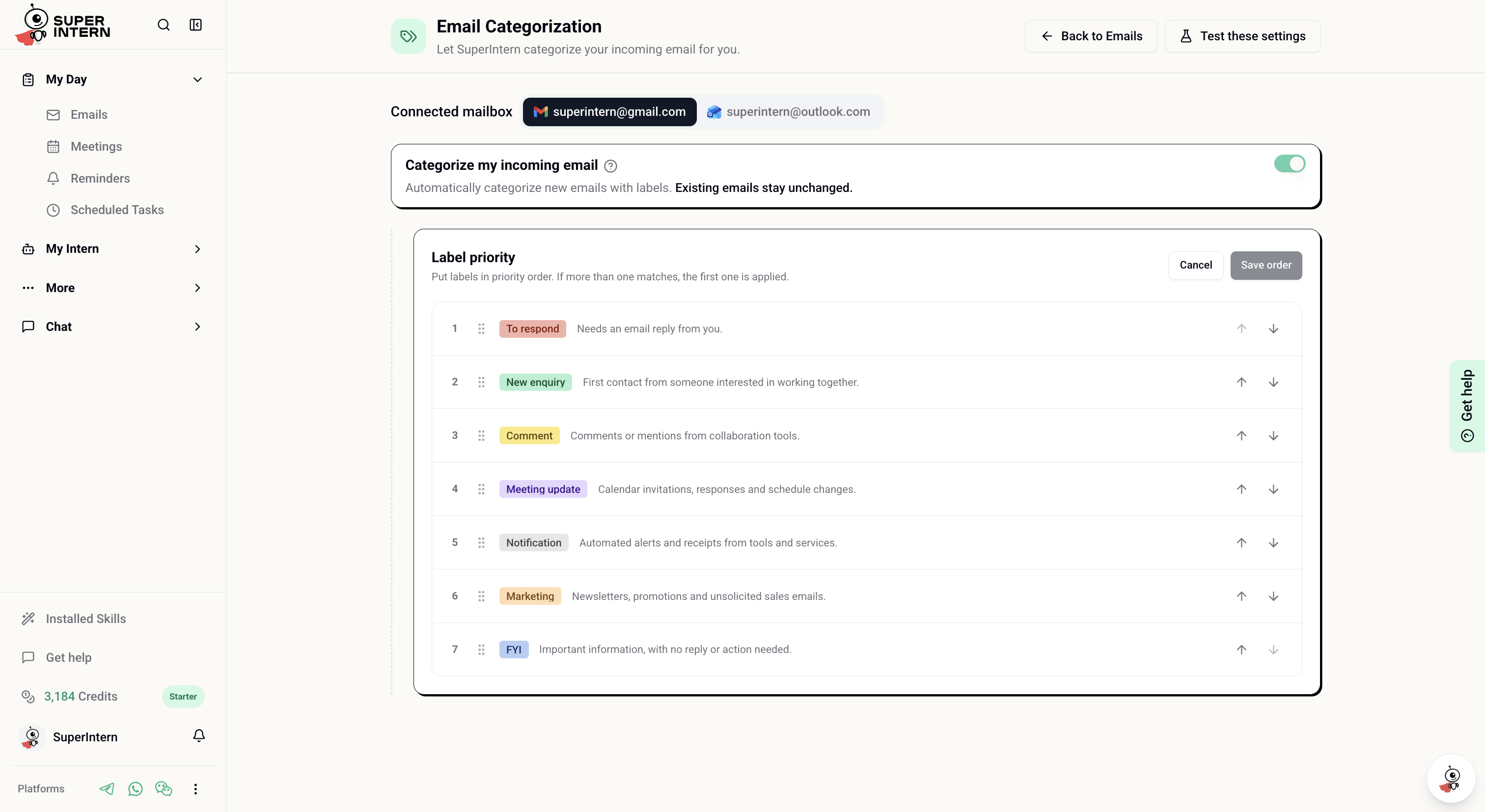
SuperIntern applies one label to each email. When a message could match more than one, the label higher in your priority list wins.
To change the order:
Select **Reorder** in the **Your labels** section.
Drag a label or use its up and down controls. Put the most specific or important labels first.
Select **Save order**. New email will use the updated priority.
For example, placing **To respond** above **FYI** means a message that could fit both will be labelled **To respond**.
Start with a small set of labels whose meanings are clearly different. You can add more later as you learn what is useful in your inbox.
## Decide where matching email goes
Each label has one of three actions:
| Setting | What happens |
| ----------------- | ----------------------------------------------------------------------------------------------------------------------------- |
| **Keep in inbox** | Applies the label and leaves the message visible in your inbox. |
| **Auto-archive** | Applies the label and removes the message from the inbox. You can still find it under the label or by searching your mailbox. |
| **Off** | Keeps the label in your setup but stops SuperIntern from applying it to new email. |
You can change an action directly from the **Your labels** table. The new setting applies to email categorized afterward; it does not move older messages.
Use **Auto-archive** first with labels you can safely review later, such as marketing email or automated notifications. Run a few tests before relying on it for important messages.
## Set label priority
SuperIntern applies one label to each email. When a message could match more than one, the label higher in your priority list wins.
To change the order:
Select **Reorder** in the **Your labels** section.
Drag a label or use its up and down controls. Put the most specific or important labels first.
Select **Save order**. New email will use the updated priority.
For example, placing **To respond** above **FYI** means a message that could fit both will be labelled **To respond**.
 ## Add or edit a label
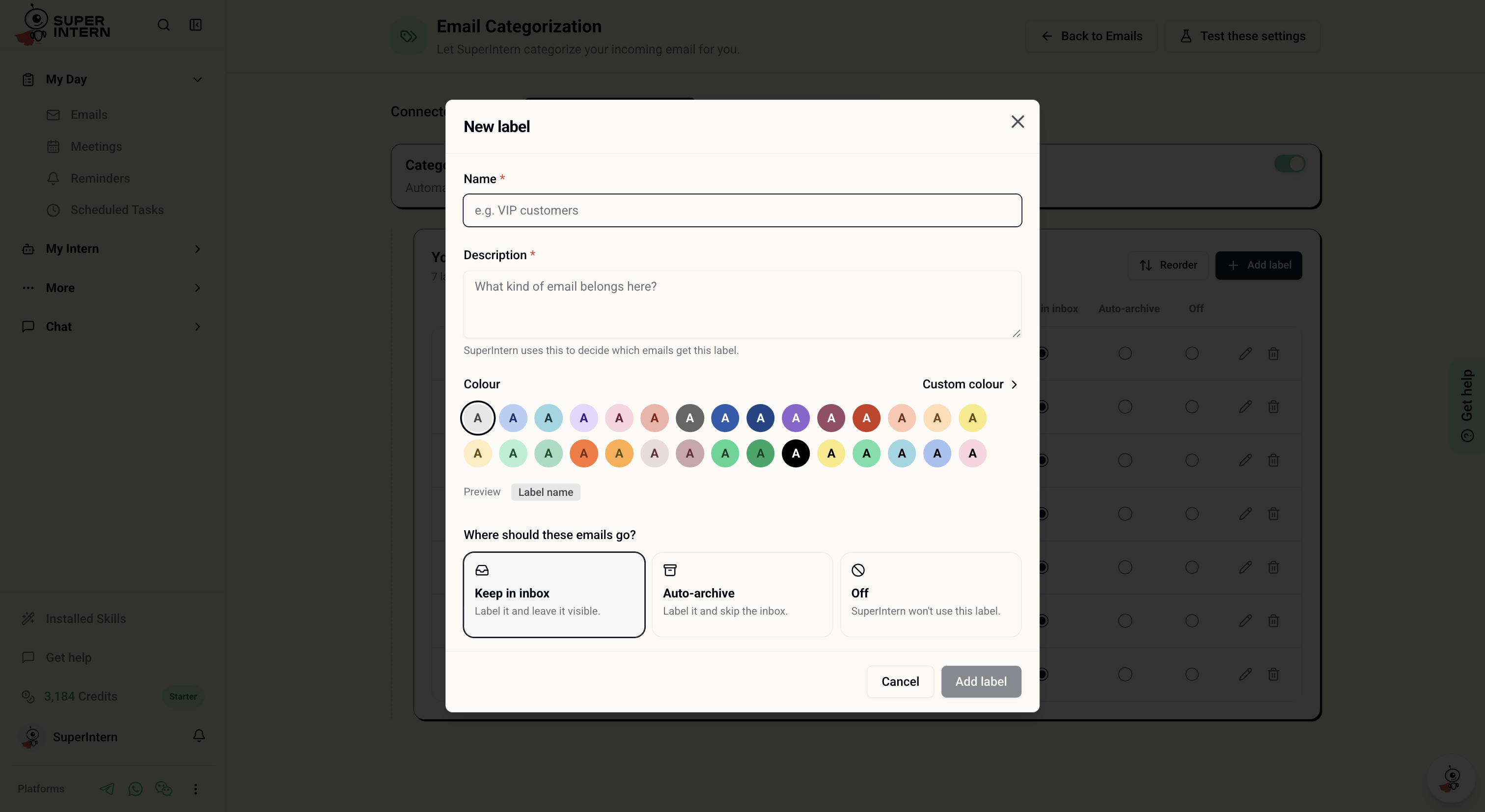
Select **Add label** to create your own. Every label needs:
* A short, distinct **name**
* A **description** of the email that belongs there
* A **colour**
* An inbox action: **Keep in inbox**, **Auto-archive**, or **Off**
Write the description as a clear rule. For example: `Questions from customers who need a reply from me.` SuperIntern uses this description when deciding whether a new message matches.
## Add or edit a label
Select **Add label** to create your own. Every label needs:
* A short, distinct **name**
* A **description** of the email that belongs there
* A **colour**
* An inbox action: **Keep in inbox**, **Auto-archive**, or **Off**
Write the description as a clear rule. For example: `Questions from customers who need a reply from me.` SuperIntern uses this description when deciding whether a new message matches.
 To change an existing label, select its edit icon. Gmail labels support name and colour changes. Outlook category names and colours are fixed after creation in SuperIntern; you can still update the description and inbox action. To use a different Outlook name or colour, remove the category and create a new one.
When you remove a label, review the confirmation message carefully. It explains how the removal affects the copy in your connected mailbox.
## Test your settings
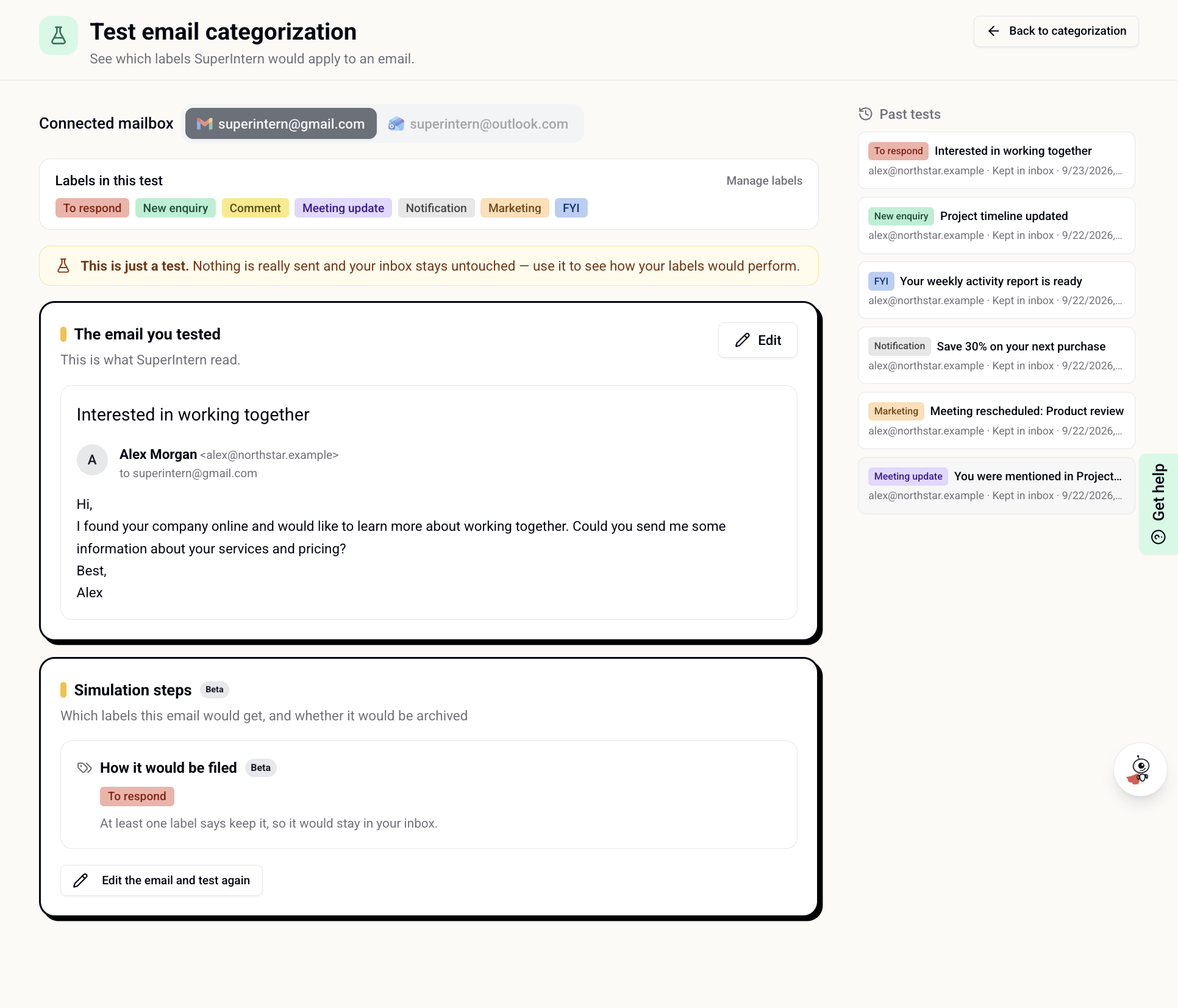
Select **Test these settings** in the top-right corner of the Email Categorization page. The test uses a sample incoming email and does not send anything or change your inbox.
If both Gmail and Outlook are connected, select the mailbox whose labels you want to test. The labels included in the test appear above the email form.
Enter the sender, subject, and message body. Make it similar to a real email you expect to receive.
Select **Run test**. The result shows the single label SuperIntern would apply and whether the email would stay in your inbox or be archived.
Select **Edit the email and test again**, or update your label descriptions and priority. Previous categorization tests remain available under **Past tests**.
To change an existing label, select its edit icon. Gmail labels support name and colour changes. Outlook category names and colours are fixed after creation in SuperIntern; you can still update the description and inbox action. To use a different Outlook name or colour, remove the category and create a new one.
When you remove a label, review the confirmation message carefully. It explains how the removal affects the copy in your connected mailbox.
## Test your settings
Select **Test these settings** in the top-right corner of the Email Categorization page. The test uses a sample incoming email and does not send anything or change your inbox.
If both Gmail and Outlook are connected, select the mailbox whose labels you want to test. The labels included in the test appear above the email form.
Enter the sender, subject, and message body. Make it similar to a real email you expect to receive.
Select **Run test**. The result shows the single label SuperIntern would apply and whether the email would stay in your inbox or be archived.
Select **Edit the email and test again**, or update your label descriptions and priority. Previous categorization tests remain available under **Past tests**.
 A categorization test evaluates labels only. It does not test whether SuperIntern would draft or send a reply.
## What to expect in your mailbox
Once categorization is enabled, SuperIntern creates the selected labels or categories in your mailbox and applies the best match to each new email. Gmail displays them as labels; Outlook displays them as categories. Colours can look slightly different because Gmail and Outlook use different colour systems.
SuperIntern does not recategorize existing messages when you enable the feature, change a description, reorder labels, or change an inbox action.
If you delete a managed label directly in Gmail or Outlook, SuperIntern shows **A label stopped working** on the settings page. Choose **Put it back** to recreate it in the mailbox, or **Remove** to delete it from your SuperIntern setup.
If Outlook asks you to reconnect, the mailbox connection is missing permission to create categories. Select **Reconnect Outlook**, complete the connection in the new tab, then return to Email Categorization and try again.
A categorization test evaluates labels only. It does not test whether SuperIntern would draft or send a reply.
## What to expect in your mailbox
Once categorization is enabled, SuperIntern creates the selected labels or categories in your mailbox and applies the best match to each new email. Gmail displays them as labels; Outlook displays them as categories. Colours can look slightly different because Gmail and Outlook use different colour systems.
SuperIntern does not recategorize existing messages when you enable the feature, change a description, reorder labels, or change an inbox action.
If you delete a managed label directly in Gmail or Outlook, SuperIntern shows **A label stopped working** on the settings page. Choose **Put it back** to recreate it in the mailbox, or **Remove** to delete it from your SuperIntern setup.
If Outlook asks you to reconnect, the mailbox connection is missing permission to create categories. Select **Reconnect Outlook**, complete the connection in the new tab, then return to Email Categorization and try again.