> ## Documentation Index
> Fetch the complete documentation index at: https://docs.superintern.ai/llms.txt
> Use this file to discover all available pages before exploring further.
# Calendar & Meetings
> See your schedule in the Calendar tab of My Day, get meeting briefings, and send SuperIntern's bot into calls to record and summarize them — all in one click.
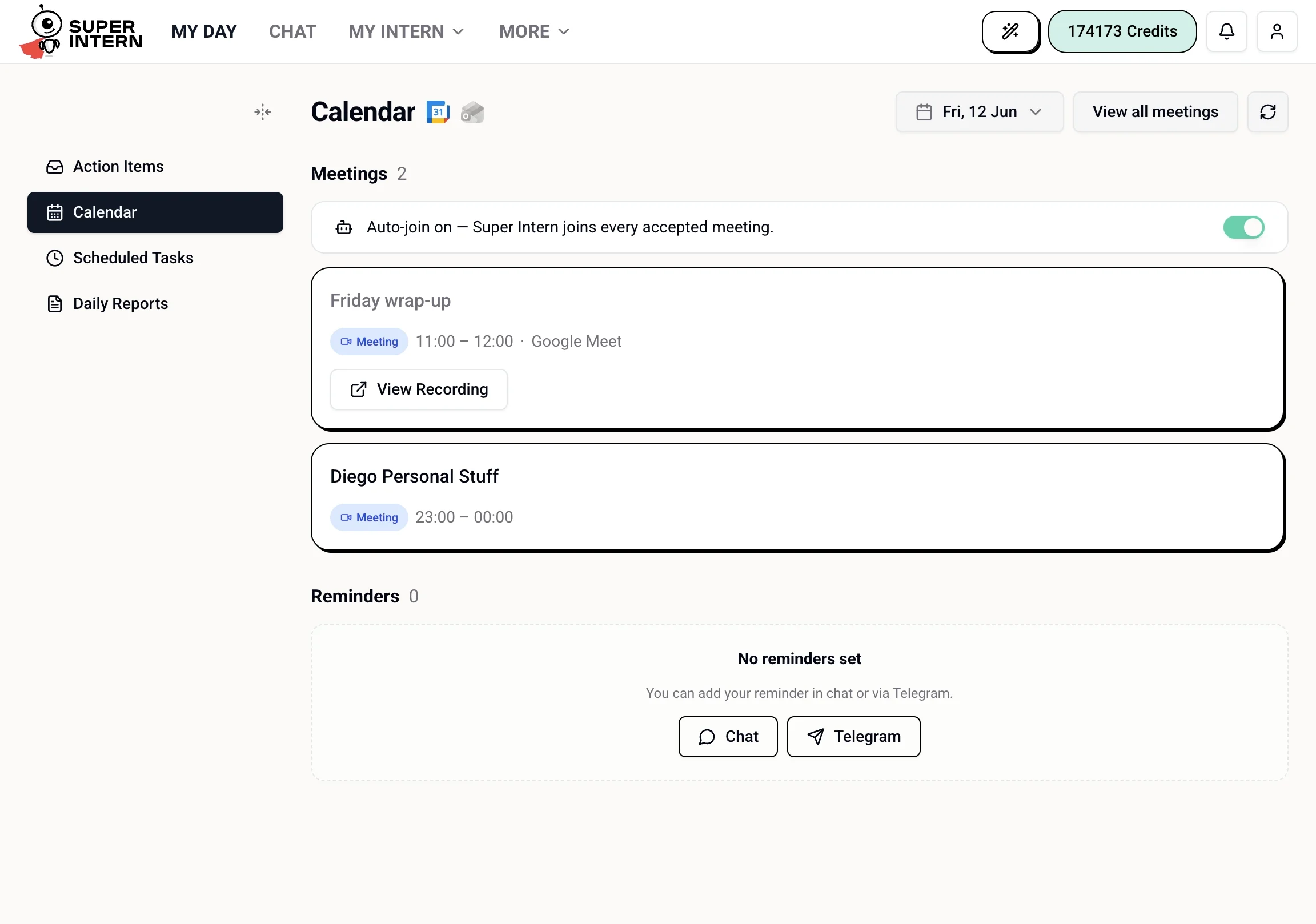 Once your calendar is connected, your upcoming events appear in the **Calendar** tab of [My Day](/my-day/overview). Your intern also preps you before calls, can attend meetings as a bot, and delivers summaries with action items afterward.
## Connecting Your Calendar
Your intern needs calendar access to show your schedule and join meetings. Connect it during onboarding or from **More → Integrations** in the top navigation.
See [Why Connect Your Calendar?](/start-here/why-calendar) for everything calendar access unlocks.
***
## The Calendar Tab
The Calendar tab shows:
* **Meetings** — each event's title, time, and platform, with a date picker to view other days
* **Auto-join toggle** — have your intern's bot join every accepted meeting automatically
* **Join button** — appears on any event with a supported video link
* **Reminders** — reminders you've set in chat or via Telegram
* **View all meetings** — jumps to the full Meetings page
Your intern refreshes this view automatically. If a meeting is rescheduled or cancelled, the My Day page updates without you doing anything.
Ask about your schedule in chat any time:
```
What's on my calendar today?
```
```
When's my next free hour this afternoon?
```
```
Do I have any conflicts this week?
```
```
What meetings do I have tomorrow?
```
***
## Pre-Meeting Briefings
Before a meeting starts, your intern can prepare a briefing — a short summary of who's attending, relevant context from past conversations or emails, and open items that might come up.
```
Brief me before my 3pm call with the design team.
```
```
Who's on the meeting at 2pm and what's the agenda?
```
```
What did we discuss last time with the Acme team?
```
Briefings pull from your email, previous meeting notes, and anything your intern knows about the attendees through your [CRM](/intern/crm).
***
## Sending the Bot to a Meeting
For any event with a supported video link, click **Join** in the Calendar tab to send your intern's bot into the call. You attend the meeting; your intern handles the notes:
1. Share a meeting link with your intern, or send the bot from the Calendar tab.
2. The bot joins as a participant under a name you choose.
3. After the call, it processes the recording.
4. You receive a summary with key decisions and action items, surfaced in the [Action Items](/my-day/action-items) tab.
You can also send the bot from chat:
```
Join my 3pm Google Meet and take notes.
```
```
Join this meeting and take notes: https://meet.google.com/abc-defg-hij
```
### What the Summary Includes
* **Title and duration**
* **Key discussion points**, organized by topic
* **Decisions made**
* **Action items**, with owner and deadline when mentioned
* **Full transcript** (optional)
### Naming the Bot
```
Set the meeting bot name to "SuperIntern Notes".
```
Other participants see the bot join under this name. Let your team know in advance.
### Supported Platforms
| Platform | Status |
| --------------- | --------- |
| Google Meet | Supported |
| Zoom | Supported |
| Microsoft Teams | Supported |
| Webex | Supported |
### Retrieving Past Notes
You can view all your past meetings and summaries from the Calendar tab, or ask in chat:
```
Show me the notes from yesterday's meeting.
```
```
What action items came out of this week's team sync?
```
```
Find my meeting with the design team from last Tuesday.
```
Send the bot a few minutes early so it's ready when the call begins. You can also ask it to share the summary afterward: "Send the meeting notes to the team Slack channel."
***
## Meetings Without the Bot
Your intern doesn't need to attend a meeting to be useful. You can brief it before and debrief it after:
```
I just got out of a meeting. Here's what happened: [paste notes]. What follow-ups should I send?
```
```
Draft a follow-up email to the Acme team based on what we discussed — focus on the pricing proposal.
```
***
## Asking About Specific Events
```
What time is my next meeting?
```
```
Who's coming to the Friday all-hands?
```
```
Can you check if I'm free at 4pm on Thursday?
```
```
Block two hours tomorrow morning for deep work.
```
Your intern can read your calendar, describe events, and suggest free time — but only writes to your calendar if you explicitly ask it to.
Once your calendar is connected, your upcoming events appear in the **Calendar** tab of [My Day](/my-day/overview). Your intern also preps you before calls, can attend meetings as a bot, and delivers summaries with action items afterward.
## Connecting Your Calendar
Your intern needs calendar access to show your schedule and join meetings. Connect it during onboarding or from **More → Integrations** in the top navigation.
See [Why Connect Your Calendar?](/start-here/why-calendar) for everything calendar access unlocks.
***
## The Calendar Tab
The Calendar tab shows:
* **Meetings** — each event's title, time, and platform, with a date picker to view other days
* **Auto-join toggle** — have your intern's bot join every accepted meeting automatically
* **Join button** — appears on any event with a supported video link
* **Reminders** — reminders you've set in chat or via Telegram
* **View all meetings** — jumps to the full Meetings page
Your intern refreshes this view automatically. If a meeting is rescheduled or cancelled, the My Day page updates without you doing anything.
Ask about your schedule in chat any time:
```
What's on my calendar today?
```
```
When's my next free hour this afternoon?
```
```
Do I have any conflicts this week?
```
```
What meetings do I have tomorrow?
```
***
## Pre-Meeting Briefings
Before a meeting starts, your intern can prepare a briefing — a short summary of who's attending, relevant context from past conversations or emails, and open items that might come up.
```
Brief me before my 3pm call with the design team.
```
```
Who's on the meeting at 2pm and what's the agenda?
```
```
What did we discuss last time with the Acme team?
```
Briefings pull from your email, previous meeting notes, and anything your intern knows about the attendees through your [CRM](/intern/crm).
***
## Sending the Bot to a Meeting
For any event with a supported video link, click **Join** in the Calendar tab to send your intern's bot into the call. You attend the meeting; your intern handles the notes:
1. Share a meeting link with your intern, or send the bot from the Calendar tab.
2. The bot joins as a participant under a name you choose.
3. After the call, it processes the recording.
4. You receive a summary with key decisions and action items, surfaced in the [Action Items](/my-day/action-items) tab.
You can also send the bot from chat:
```
Join my 3pm Google Meet and take notes.
```
```
Join this meeting and take notes: https://meet.google.com/abc-defg-hij
```
### What the Summary Includes
* **Title and duration**
* **Key discussion points**, organized by topic
* **Decisions made**
* **Action items**, with owner and deadline when mentioned
* **Full transcript** (optional)
### Naming the Bot
```
Set the meeting bot name to "SuperIntern Notes".
```
Other participants see the bot join under this name. Let your team know in advance.
### Supported Platforms
| Platform | Status |
| --------------- | --------- |
| Google Meet | Supported |
| Zoom | Supported |
| Microsoft Teams | Supported |
| Webex | Supported |
### Retrieving Past Notes
You can view all your past meetings and summaries from the Calendar tab, or ask in chat:
```
Show me the notes from yesterday's meeting.
```
```
What action items came out of this week's team sync?
```
```
Find my meeting with the design team from last Tuesday.
```
Send the bot a few minutes early so it's ready when the call begins. You can also ask it to share the summary afterward: "Send the meeting notes to the team Slack channel."
***
## Meetings Without the Bot
Your intern doesn't need to attend a meeting to be useful. You can brief it before and debrief it after:
```
I just got out of a meeting. Here's what happened: [paste notes]. What follow-ups should I send?
```
```
Draft a follow-up email to the Acme team based on what we discussed — focus on the pricing proposal.
```
***
## Asking About Specific Events
```
What time is my next meeting?
```
```
Who's coming to the Friday all-hands?
```
```
Can you check if I'm free at 4pm on Thursday?
```
```
Block two hours tomorrow morning for deep work.
```
Your intern can read your calendar, describe events, and suggest free time — but only writes to your calendar if you explicitly ask it to.