> ## Documentation Index
> Fetch the complete documentation index at: https://docs.superintern.ai/llms.txt
> Use this file to discover all available pages before exploring further.
# Integrations Page
> Connect data sources, external services, and chat platforms from the Integrations & Platforms page — search the catalog, authorize accounts, and manage existing connections.
The **Integrations & Platforms** page is where you connect SuperIntern to the tools you already use and the chat channels where you want to reach it. Open it from **More → Integrations** in the top navigation.
The page has two tabs: **Integrations** for data sources and external services, and **Platforms** for chat channels.
## The Integrations Tab
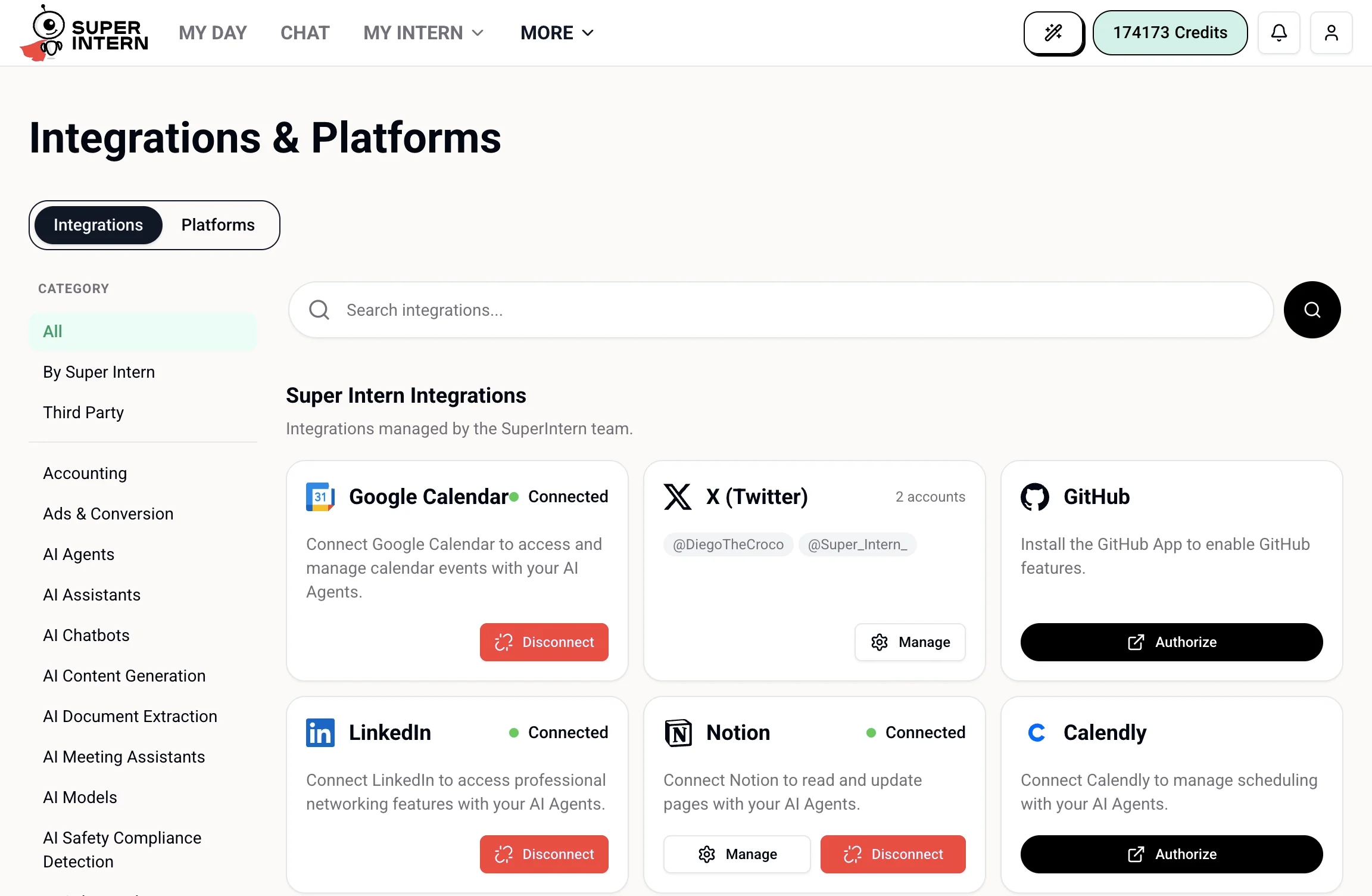 This tab lists every service your intern can connect to:
* **Category sidebar** — filter by **All**, **By SuperIntern** (native integrations), or **Third Party**, or jump to a specific category like Accounting, AI Agents, or Analytics.
* **Search** — find any integration in the catalog by name.
* **Integration cards** — each card shows the service, a short description of what connecting enables, and its connection status.
### Connecting and Managing
The buttons on each card depend on its state:
| Button | What it does |
| --------------------------- | --------------------------------------------------------------------------- |
| **Connect** / **Authorize** | Starts the OAuth or app-install flow for that service |
| **Manage** | Opens settings for a connected integration (for example, choosing accounts) |
| **Disconnect** | Removes the connection and revokes SuperIntern's access |
Integrations that support multiple accounts — such as X (Twitter) and TikTok — show the connected accounts on the card, and **Manage** lets you add or switch between them.
## SuperIntern Integrations
The **By SuperIntern** section lists integrations built and maintained by the SuperIntern team. They connect directly to each service through its official API, are tested and updated automatically, and cover the tools your intern uses most:
* **Calendar & Email** — Google Calendar, Outlook, Calendly
* **Social Media** — X (Twitter), LinkedIn, TikTok
* **Productivity & Developer Tools** — Notion, GitHub, Cursor
These are the recommended way to connect core services — see [By SuperIntern](/integrations/first-party) for what each one enables.
## Third-Party Integrations
The **Third Party** section is a searchable catalog of 250+ external services, bridging SuperIntern to apps that aren't natively supported — CRMs, databases, accounting tools, cloud storage, and more. Browse it by category from the sidebar (Accounting, AI Agents, Analytics, and many others) or use search.
Connecting works the same way: click **Authorize**, complete the service's OAuth flow, and the integration's tools become available to your intern instantly. If a third-party connection expires, re-authorize it from the same card. See [Third-Party Integrations](/integrations/third-party) for the full guide.
If a service appears in both places, prefer the SuperIntern version — native integrations are more deeply integrated and maintained automatically.
## The Platforms Tab
This tab lists every service your intern can connect to:
* **Category sidebar** — filter by **All**, **By SuperIntern** (native integrations), or **Third Party**, or jump to a specific category like Accounting, AI Agents, or Analytics.
* **Search** — find any integration in the catalog by name.
* **Integration cards** — each card shows the service, a short description of what connecting enables, and its connection status.
### Connecting and Managing
The buttons on each card depend on its state:
| Button | What it does |
| --------------------------- | --------------------------------------------------------------------------- |
| **Connect** / **Authorize** | Starts the OAuth or app-install flow for that service |
| **Manage** | Opens settings for a connected integration (for example, choosing accounts) |
| **Disconnect** | Removes the connection and revokes SuperIntern's access |
Integrations that support multiple accounts — such as X (Twitter) and TikTok — show the connected accounts on the card, and **Manage** lets you add or switch between them.
## SuperIntern Integrations
The **By SuperIntern** section lists integrations built and maintained by the SuperIntern team. They connect directly to each service through its official API, are tested and updated automatically, and cover the tools your intern uses most:
* **Calendar & Email** — Google Calendar, Outlook, Calendly
* **Social Media** — X (Twitter), LinkedIn, TikTok
* **Productivity & Developer Tools** — Notion, GitHub, Cursor
These are the recommended way to connect core services — see [By SuperIntern](/integrations/first-party) for what each one enables.
## Third-Party Integrations
The **Third Party** section is a searchable catalog of 250+ external services, bridging SuperIntern to apps that aren't natively supported — CRMs, databases, accounting tools, cloud storage, and more. Browse it by category from the sidebar (Accounting, AI Agents, Analytics, and many others) or use search.
Connecting works the same way: click **Authorize**, complete the service's OAuth flow, and the integration's tools become available to your intern instantly. If a third-party connection expires, re-authorize it from the same card. See [Third-Party Integrations](/integrations/third-party) for the full guide.
If a service appears in both places, prefer the SuperIntern version — native integrations are more deeply integrated and maintained automatically.
## The Platforms Tab
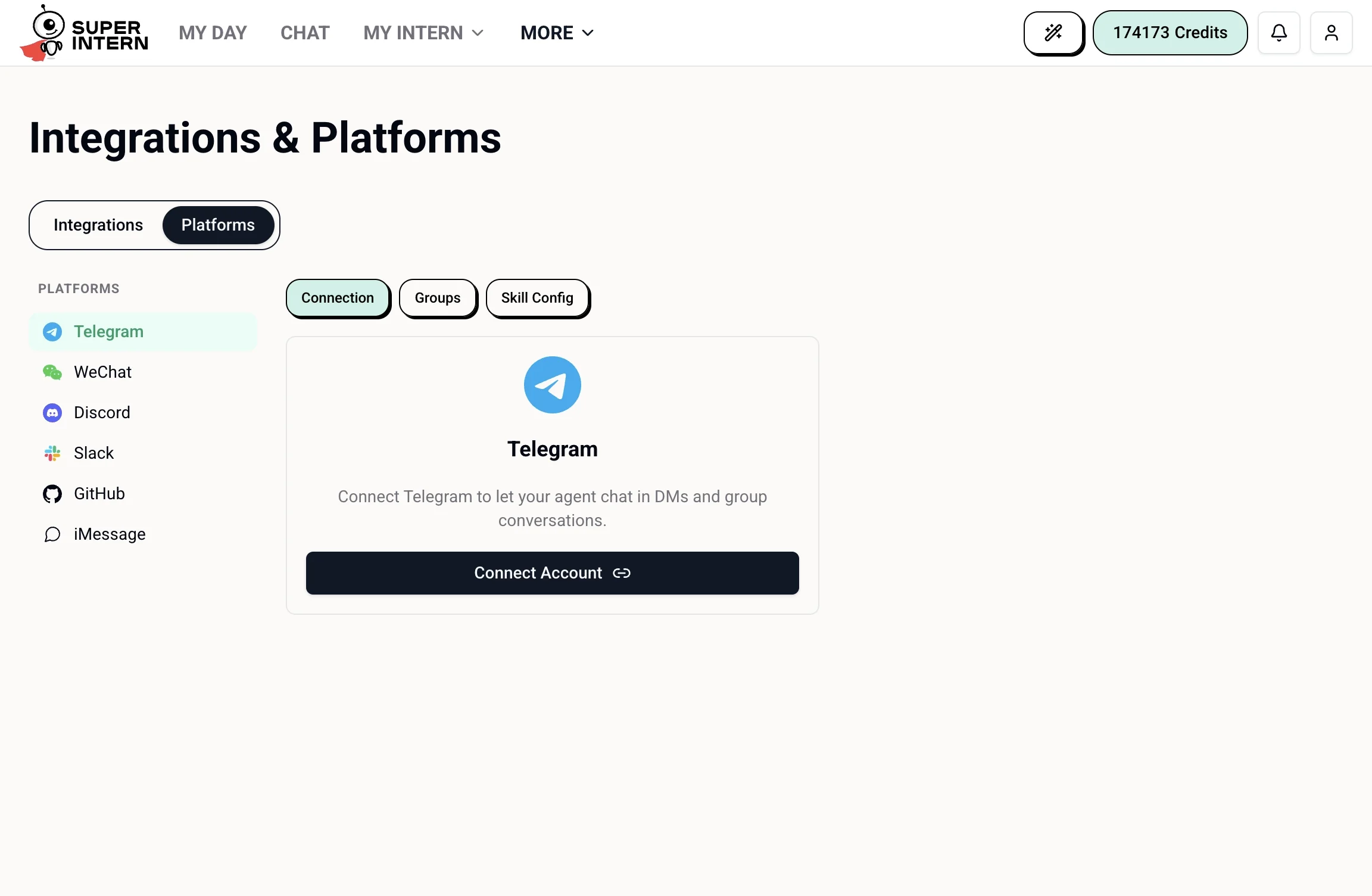 Platforms are the chat channels where your intern can receive and respond to messages: **Telegram**, **WeChat**, **Discord**, and **Slack**.
Select a platform in the sidebar to see its connection flow — for example, Telegram uses a **Connect Account** button and offers **Groups** and **Skill Config** settings, while WeChat connects by scanning a QR code. See the per-platform guides for details: [Telegram](/chat/telegram), [Discord](/chat/discord), [WeChat](/chat/wechat).
Everything you connect is governed by SuperIntern's [privacy and security](/start-here/privacy-and-security) rules — only the tokens needed to act are stored, and you can revoke access from this page at any time.
Platforms are the chat channels where your intern can receive and respond to messages: **Telegram**, **WeChat**, **Discord**, and **Slack**.
Select a platform in the sidebar to see its connection flow — for example, Telegram uses a **Connect Account** button and offers **Groups** and **Skill Config** settings, while WeChat connects by scanning a QR code. See the per-platform guides for details: [Telegram](/chat/telegram), [Discord](/chat/discord), [WeChat](/chat/wechat).
Everything you connect is governed by SuperIntern's [privacy and security](/start-here/privacy-and-security) rules — only the tokens needed to act are stored, and you can revoke access from this page at any time.